
Forward to Email
Bring supported incoming iPhone messages into an inbox you already monitor.
Use Apple’s built-in Shortcuts app to move supported business texts from an iPhone into AutoForward Text, email, Slack and other team workflows. Keep the existing iPhone number without installing a separate forwarding app or changing carriers.
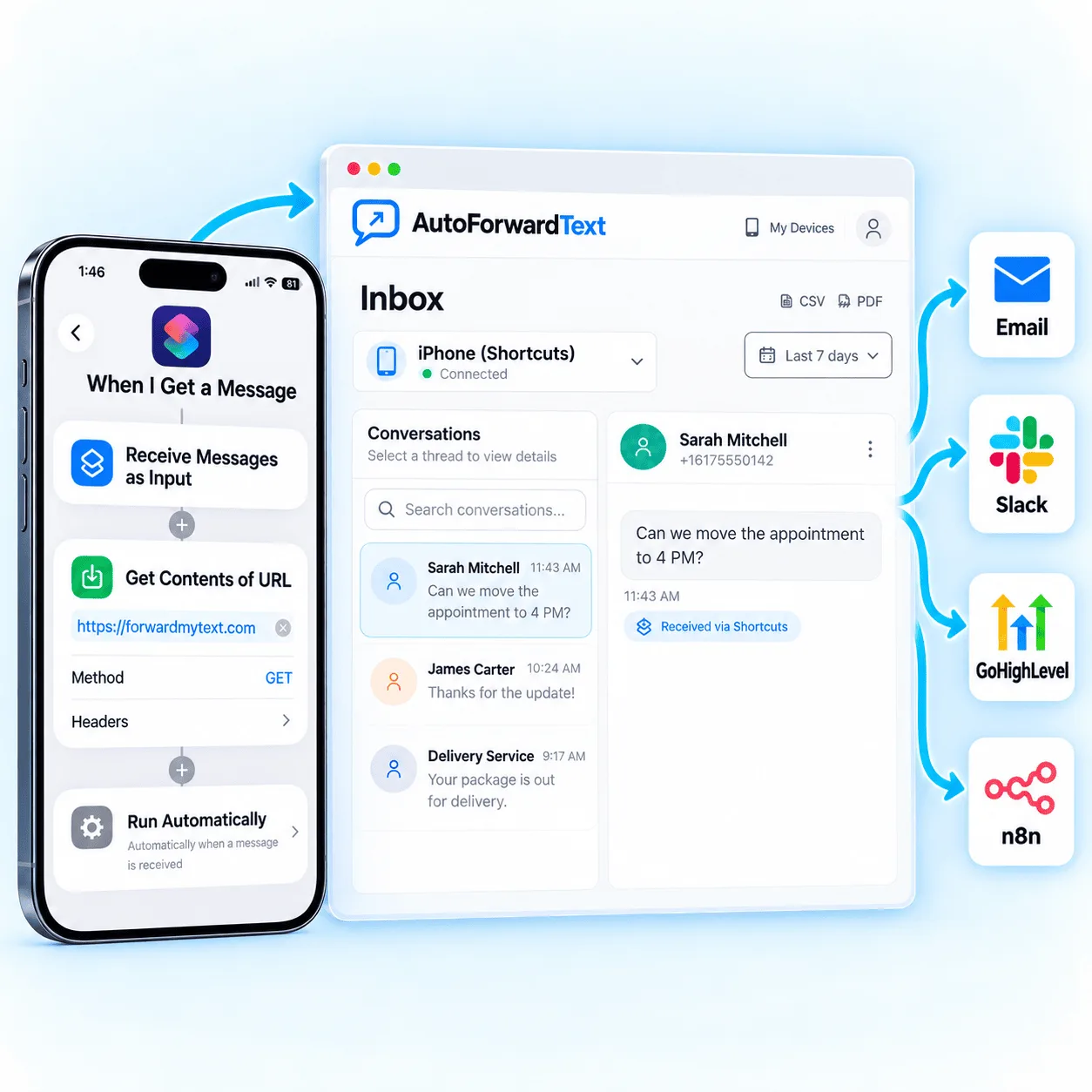
Use Apple Shortcuts already included with iOS.
Run the automation when an incoming message matches.
Route supported messages through your AutoForward Text account.
Keep important messages visible in email and Slack, apply Shortcut filters and help the team monitor a business number without relying on one person to check the iPhone.
Bring supported incoming iPhone messages into an inbox you already monitor.
Route important message activity into supported Slack workflows for team visibility.
Use sender or message conditions to control when the iPhone automation runs.
Keep message copies accessible from a second supported destination when needed.
The full illustrated guide contains every tap and screenshot. These are the essential setup stages.
Open Shortcuts, tap Automation, create a personal automation and choose Message as the trigger.
Leave Sender unchanged, enter one space in Message Contains, select Run Immediately and tap Next.
Add Get Contents of URL with https://forwardmytext.com, then configure Message, Sender and Email headers as shown in the guide.
Save the automation, send the iPhone a sample text and confirm it appears in your AutoForward Text account or configured destination.
Use Apple Shortcuts for supported iPhone forwarding and the AutoForward Text Android app for Android phones. Messages from both platforms can feed the destinations and workflows your team already uses.
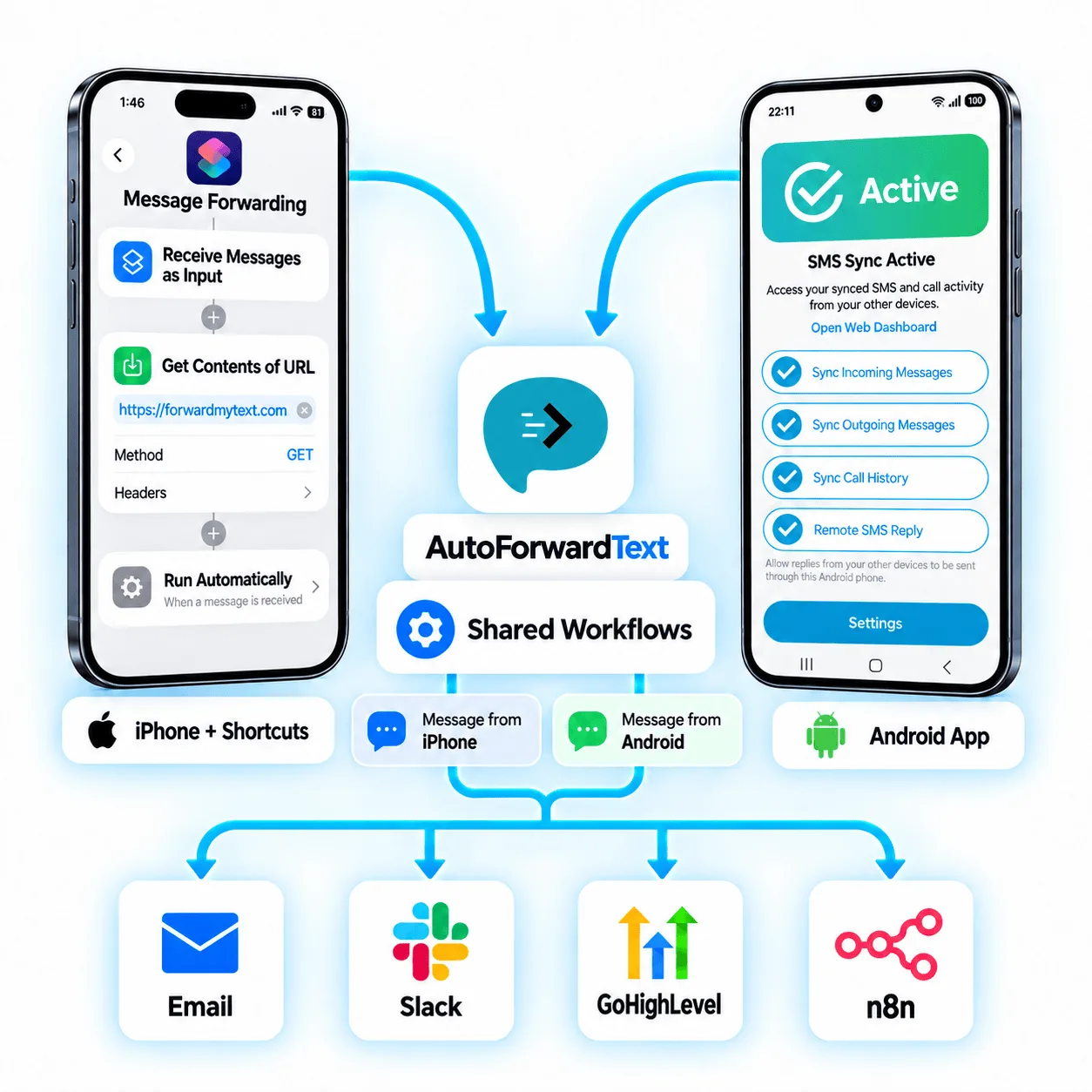
Quick answers about using Apple Shortcuts with AutoForward Text.
Visit the Help CenterNo. AutoForward Text uses Apple Shortcuts, which is built into iOS, to trigger text forwarding.
Supported AutoForward Text workflows can route iPhone message copies to email, Slack or another phone after the Shortcut sends them to your account.
The Shortcut requires the iPhone to be powered on and connected. Forwarding cannot run from the device while it is offline.
Yes. Apple Shortcuts can use sender and message conditions. The setup guide uses a single space in Message Contains to match most normal messages.
You need an iPhone running iOS 15 or newer, the built-in Shortcuts app and an AutoForward Text account.
Keep the existing iPhone number, follow the illustrated Shortcuts guide and route supported messages beyond one device.