Connect AutoForward Text to Your CRM
AutoForward Text can automatically send incoming SMS and WhatsApp messages into supported CRM platforms.
Supported CRM integrations currently include:
- HubSpot
- Pipedrive
- GoHighLevel
Once a CRM is connected, supported incoming messages from your connected devices and WhatsApp accounts are automatically sent to that CRM.
Important: How CRM Forwarding Works
First, connect your HubSpot, Pipedrive, or GoHighLevel account from:
Dashboard → CRM Integrations
This gives AutoForward Text permission to send records into the CRM.
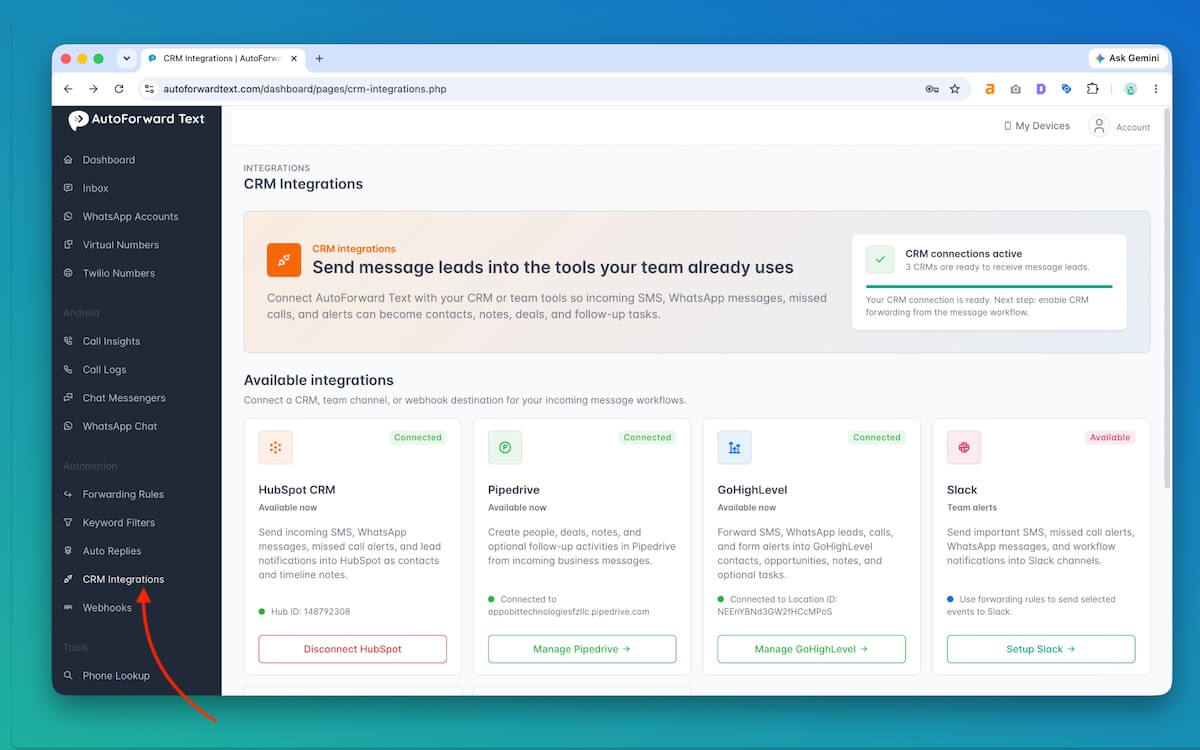
CRM forwarding is automatic.
You do not need to create a separate forwarding rule.
When you connect a CRM:
- Incoming SMS messages from all connected devices are sent to the CRM
- Incoming WhatsApp messages from all connected WhatsApp accounts are sent to the CRM
- The same message is sent to every CRM currently connected to your AutoForward Text account
For example, if HubSpot and Pipedrive are both connected, each supported incoming message will be sent to both CRMs.
What Happens Inside the CRM?
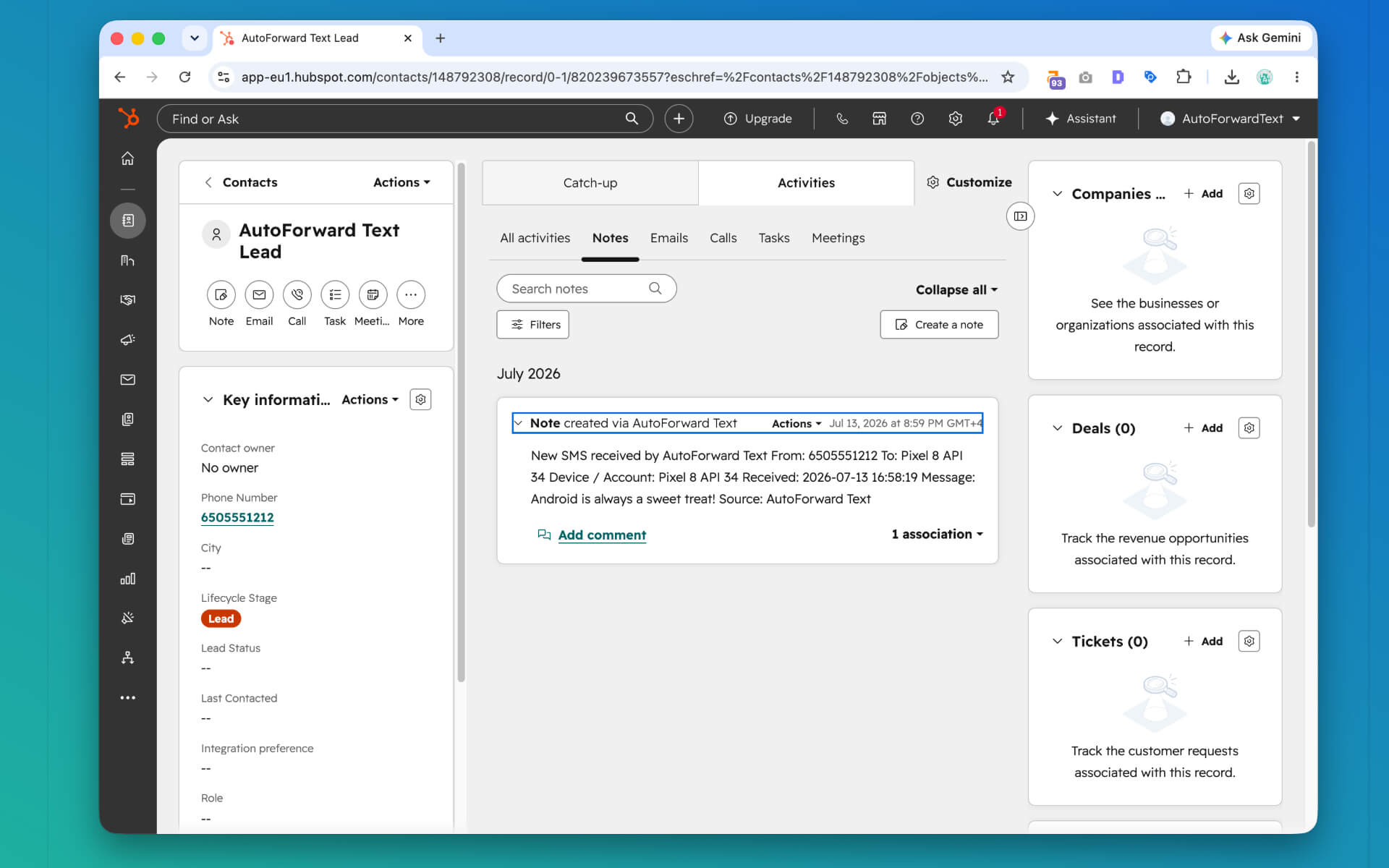
Depending on the CRM, AutoForward Text may create or update:
- Contacts or people
- Notes containing the message
- Deals or opportunities
- Follow-up activities
- Tasks
The sender’s phone number is used where possible to locate an existing CRM record.
If no matching record is found, AutoForward Text may create a new contact or person.
Are Old Messages Imported?
No.
Connecting a CRM affects new supported messages received after the connection is active.
Existing messages already stored in the AutoForward Text Inbox are not automatically imported into the CRM.
Can I Connect Multiple CRMs?
Yes.
However, every supported message will be sent to every connected CRM.
This can be useful while testing or migrating between CRM platforms, but it may also create duplicate lead records across several systems.
For normal use, we recommend connecting only the CRM platforms your team actively uses.
How to Stop CRM Forwarding
To stop messages from being sent to a CRM:
- Open CRM Integrations
- Find the connected CRM
- Select Disconnect
- Confirm the disconnection
Disconnecting a CRM stops future messages from being sent to it.
Records already created inside the CRM are not deleted.
Supported Message Sources
CRM integrations currently process supported messages received through connected AutoForward Text sources, including:
- Connected mobile devices
- Incoming SMS messages
- Connected WhatsApp accounts
- Incoming WhatsApp messages
Only successfully received and processed messages can be sent to a CRM.
Troubleshooting
The CRM is connected, but a message did not appear
Check that:
- The message appears in the AutoForward Text Inbox
- The CRM still shows as connected
- The CRM credentials or access token have not expired
- The sender’s phone number is valid
- The CRM test connection succeeds
If the message is not visible in the AutoForward Text Inbox, the issue is likely with the device or WhatsApp connection rather than the CRM integration.
The same message appeared in several CRMs
This is expected when multiple CRMs are connected.
AutoForward Text sends supported incoming messages to every connected CRM.
Disconnect any CRM that should no longer receive messages.