Connect AutoForward Text to Pipedrive
AutoForward Text can create and update Pipedrive people, deals, notes, and follow-up activities from incoming business messages.
This is useful when SMS or WhatsApp conversations represent new sales inquiries that should be recorded and followed up inside Pipedrive.
Before You Begin
You will need:
- An AutoForward Text account
- A Pipedrive account
- Permission to access the Pipedrive account
- Your Pipedrive company domain
- Your Pipedrive API token
Your Pipedrive company domain usually looks similar to:
yourcompany.pipedrive.com
Find Your Pipedrive Company Domain
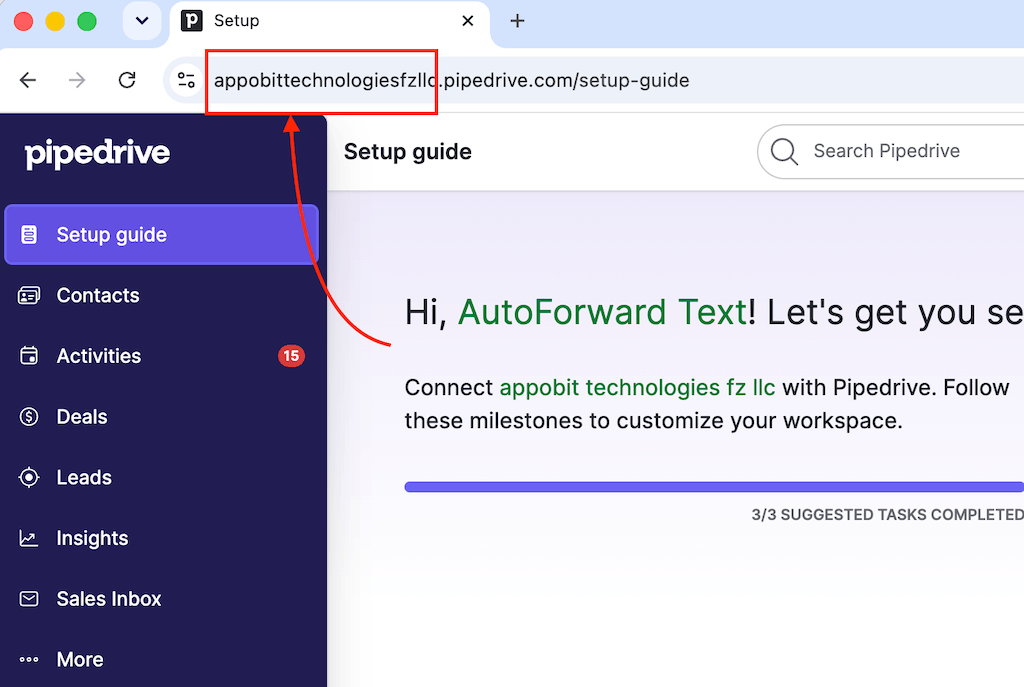
Sign in to Pipedrive and look at the browser address.
For example:
https://appobittechnologiesfzllc.pipedrive.com
In this example, the company domain is:
appobittechnologiesfzllc.pipedrive.com
Enter only the company domain requested by AutoForward Text. Do not enter an unrelated website domain.
Find Your Pipedrive API Token
Inside Pipedrive:
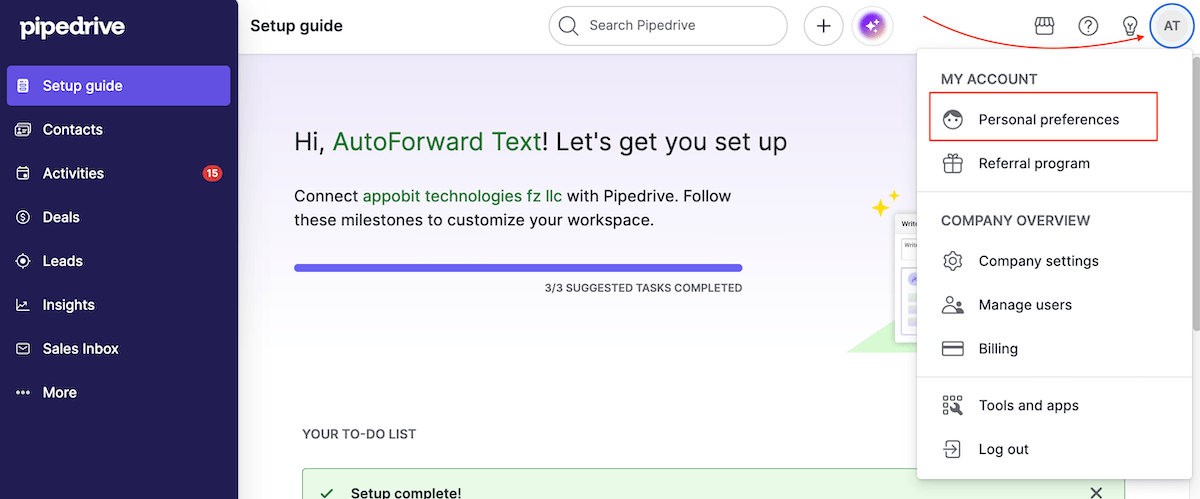
- Open your account or personal settings.
- Go to Personal preferences.
- Open the API section.
- Copy your personal API token.
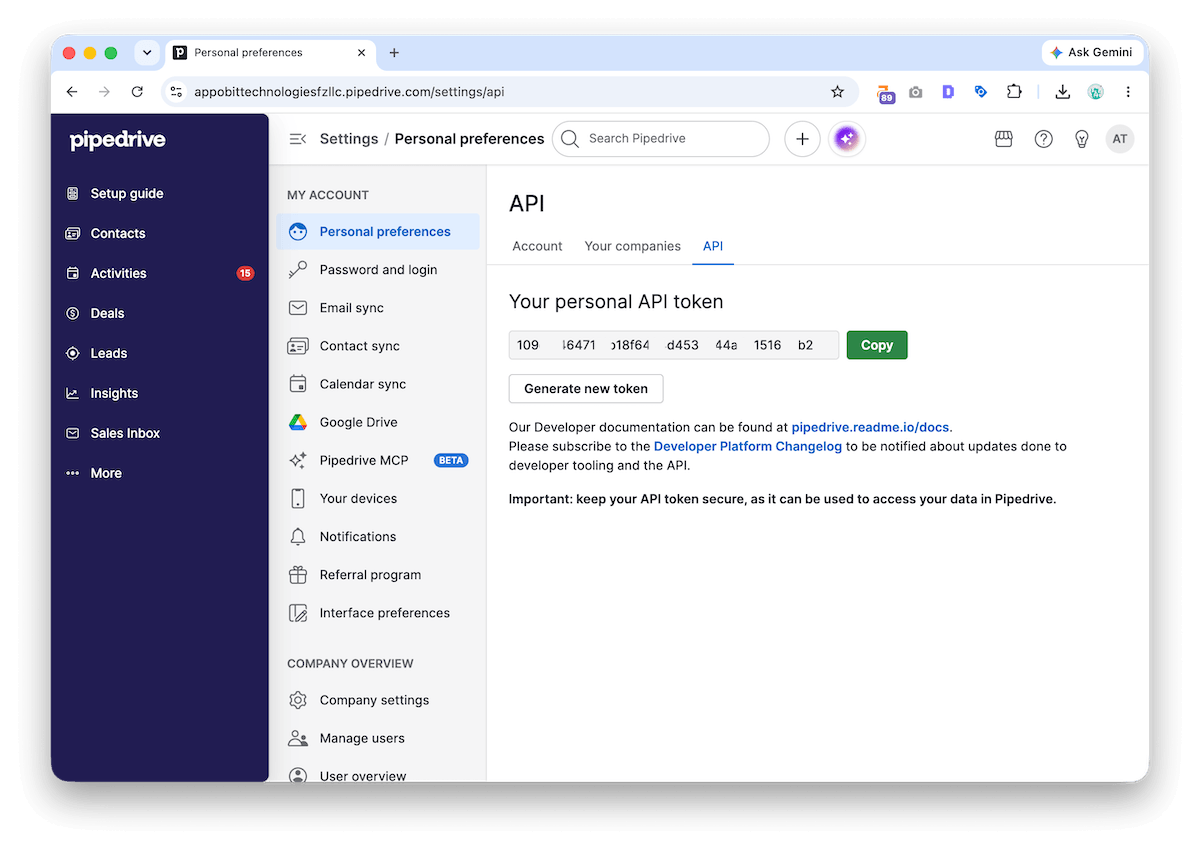
Treat the token like a password. Do not place it in emails, public support tickets, screenshots, or shared documents.
Pipedrive may move this setting depending on the account interface. Search the Pipedrive settings for “API token” when necessary.
Connect Pipedrive
- Sign in to AutoForward Text.
- Open CRM Integrations.
- Find Pipedrive.
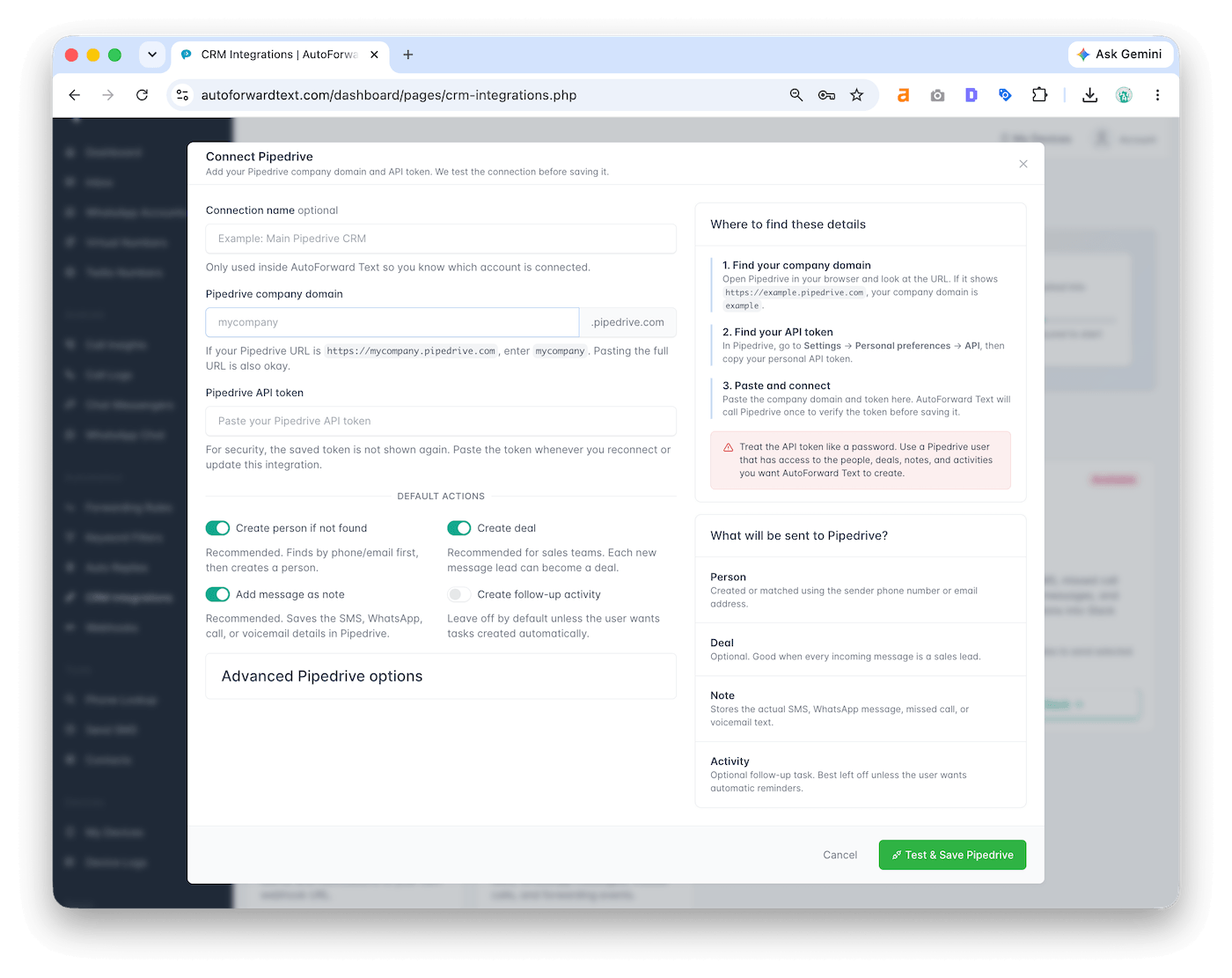
- Select Connect Pipedrive or Set Up Pipedrive.
- Enter your Pipedrive company domain.
- Enter your Pipedrive API token.
- Save the connection.
- Run the connection test.
When successful, the Pipedrive card will show Connected and display the connected company domain.
What AutoForward Text Can Create in Pipedrive
Depending on the forwarding configuration, AutoForward Text can:
- Find an existing person by phone number
- Create a new person
- Add the incoming message as a note
- Create a deal
- Create a follow-up activity
- Include message source information
- Include the original message body
- Associate the note or activity with the correct person and deal
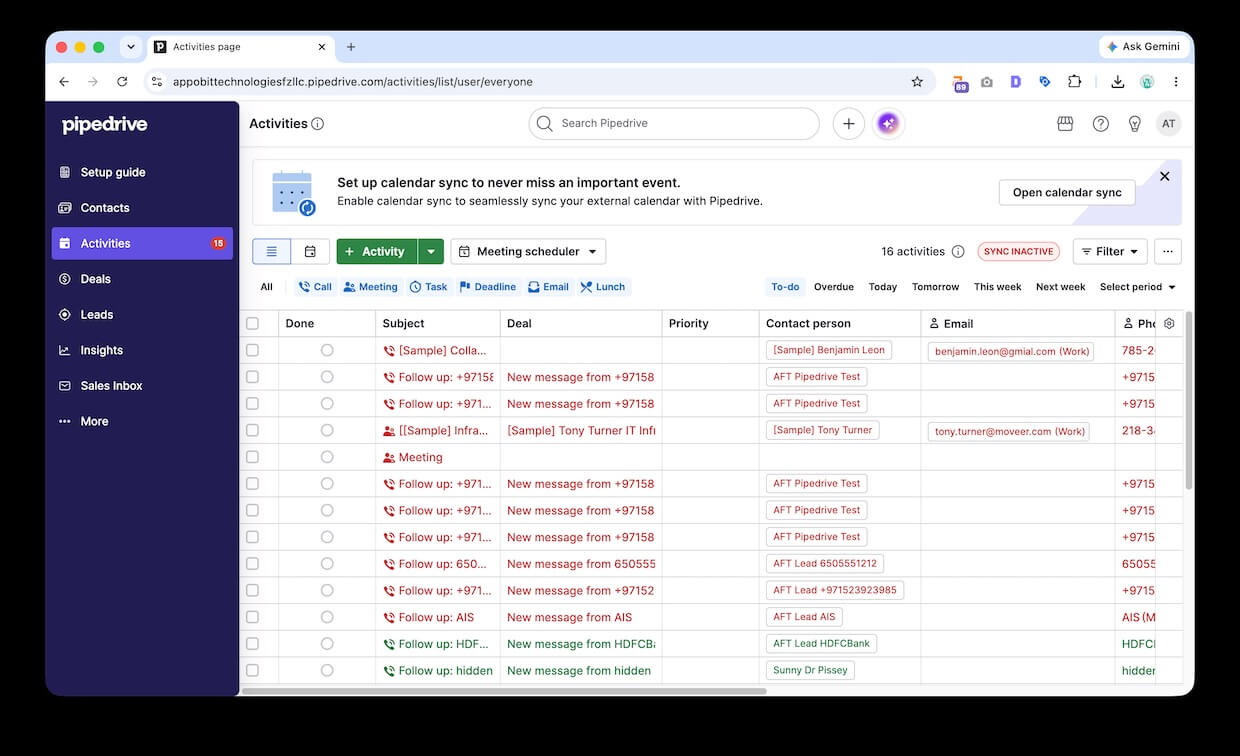
How Pipedrive Forwarding Works
Once Pipedrive is connected, supported incoming SMS and WhatsApp messages are automatically sent to Pipedrive.
No additional forwarding rule is required.
Pipedrive forwarding applies to messages from all connected mobile devices and WhatsApp accounts on the AutoForward Text account.
If HubSpot or GoHighLevel is also connected, the same messages will be sent to those platforms as well.
To stop sending messages to Pipedrive, disconnect the Pipedrive integration.
Revise this troubleshooting section:
Test push works, but real messages are missing
If the test push succeeds, the Pipedrive connection itself is working.
Confirm that the incoming message appears in the AutoForward Text Inbox.
Also check:
- The device is connected
- The WhatsApp account is active
- The message was received after Pipedrive was connected
- The Pipedrive API token is still valid
There is no separate Pipedrive forwarding rule to configure.
Recommended Pipedrive Configuration
A clean setup would normally:
- Search for an existing person by phone number
- Create a person only when no match exists
- Add each relevant message as a note
- Create a deal only for genuine sales inquiries
- Create an activity when a salesperson needs to respond
- Avoid creating repeated deals for the same person
A message such as “Can I get a quote?” may justify a new deal and follow-up activity.
A message such as “Thanks” normally only needs to be stored as a note.
Manage or Update Pipedrive
From the CRM Integrations page, select Manage Pipedrive.
You can then update the connection details or test the connection again.
Because Pipedrive API tokens may be regenerated, update AutoForward Text when the old token is replaced.
Disconnect Pipedrive
Disconnecting Pipedrive stops future messages from being pushed into the account.
Existing people, deals, notes, and activities remain in Pipedrive.
Pipedrive Troubleshooting
Invalid API token
Copy the token again directly from Pipedrive and make sure there are no spaces before or after it.
If the token was regenerated, the previous token will no longer work.
Company domain is incorrect
Use the Pipedrive company domain shown when you are logged into Pipedrive.
Do not use:
- Your business website
- A full settings-page URL
- A pipeline URL
- A deal URL
Test push works, but real messages are missing
The Pipedrive connection is working. Check the account settings in AutoForward Text and verify that the forward message content is enabled.