Connect AutoForward Text to GoHighLevel
AutoForward Text can forward SMS messages, WhatsApp leads, missed-call alerts, form notifications, and other message events into GoHighLevel.
Depending on the configuration, AutoForward Text can create or update:
- Contacts
- Opportunities
- Notes
- Tasks
- Lead records and follow-up information
Before You Begin
You will need:
- An AutoForward Text account
- Access to the required GoHighLevel location
- Permission to create a Private Integration
- The GoHighLevel Location ID
- A Private Integration access token
GoHighLevel accounts may contain several locations. Make sure the integration is created inside the location where the contacts and opportunities should appear.
Find Your GoHighLevel Location ID
Sign in to GoHighLevel and open the required location.
The Location ID is normally visible in the browser URL.
For example:
https://app.gohighlevel.com/v2/location/NEEn3GW2fHNd3GW2fHCcMPoS/settings/...
The Location ID in this example is:
NEEn3GW2fHNd3GW2fHCcMPoS
Copy only the value between /location/ and the next /.

Do not copy the complete browser URL.
Create a GoHighLevel Private Integration
Inside the selected GoHighLevel location:
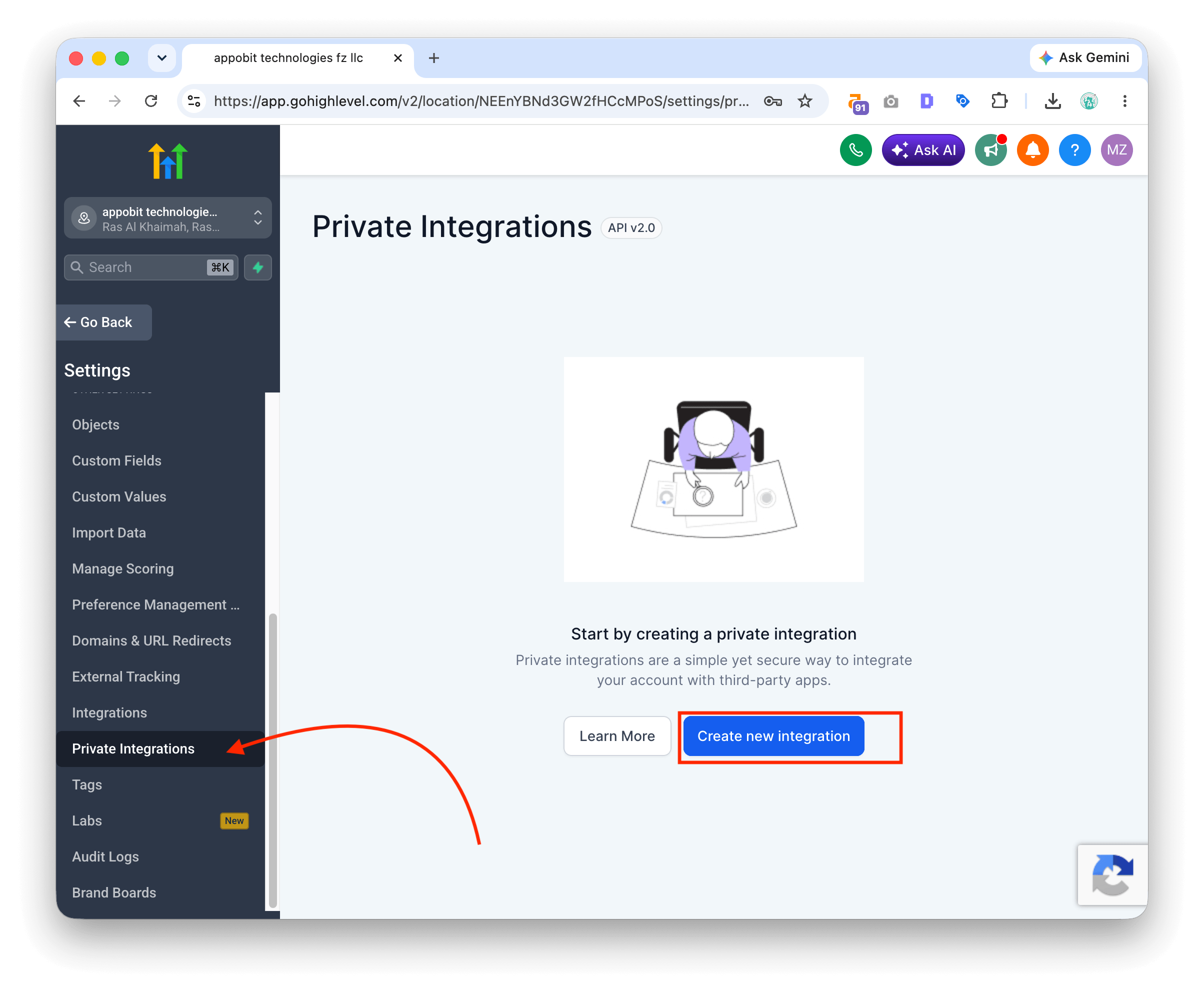
- Open Settings.
- Select Private Integrations.
- Create a new Private Integration.
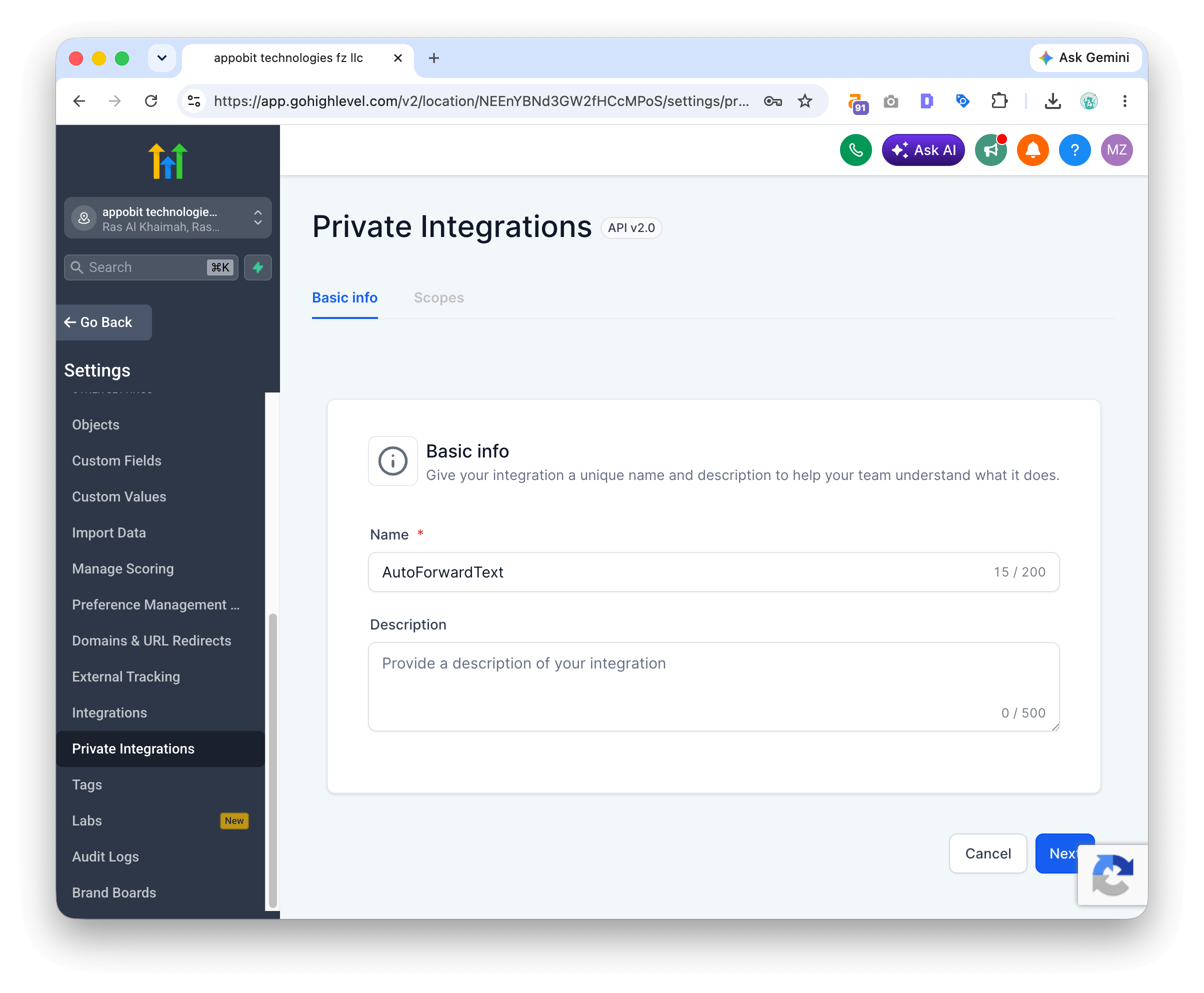
-
Enter a name such as:
AutoForwardText -
Enter a description such as:
Sends incoming SMS, WhatsApp messages, missed calls, and lead notifications from AutoForward Text into GoHighLevel contacts, opportunities, notes, and tasks. - Select Next.
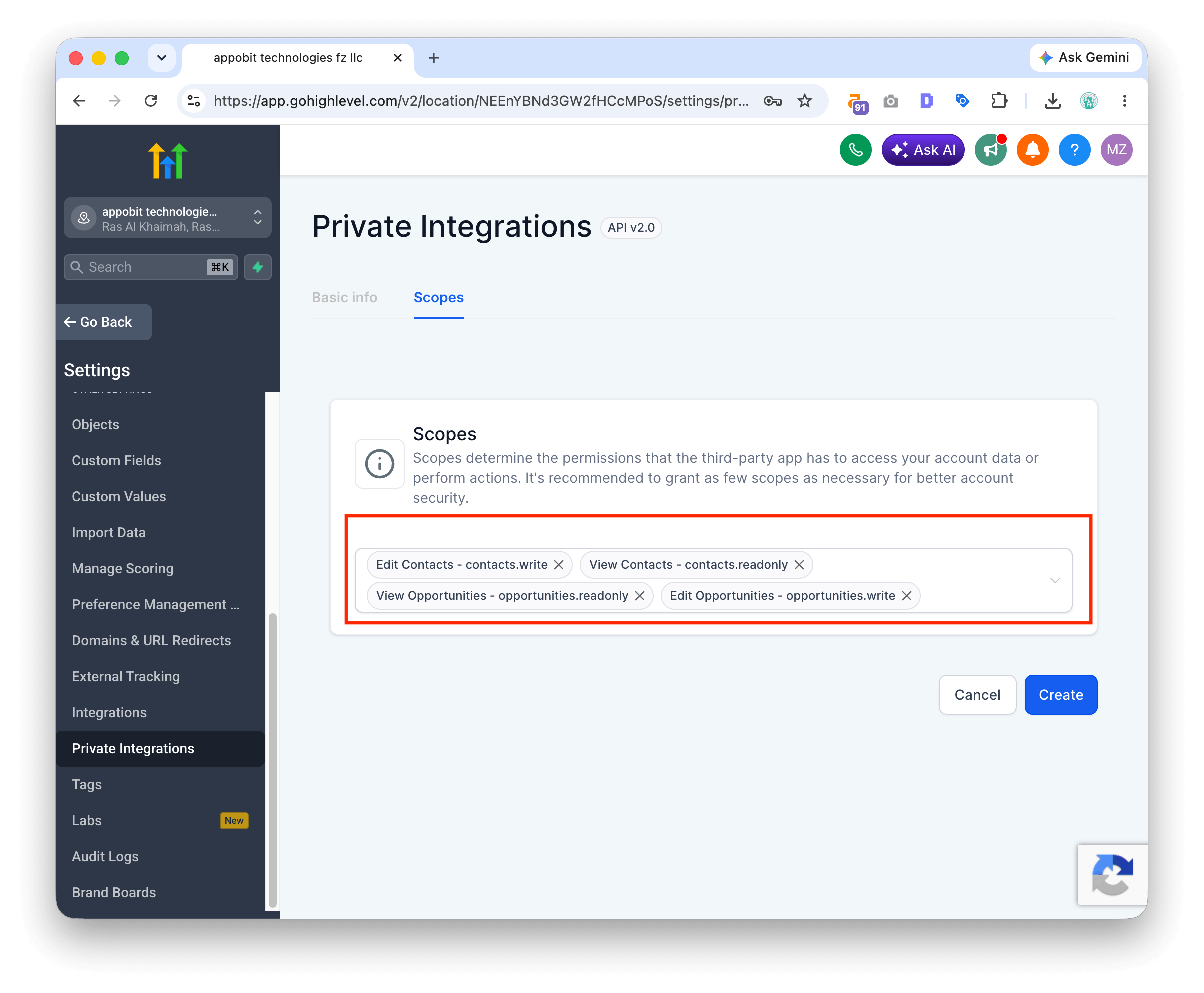
- Enable the required scopes.
- Create or save the integration.
- Copy the generated access token.
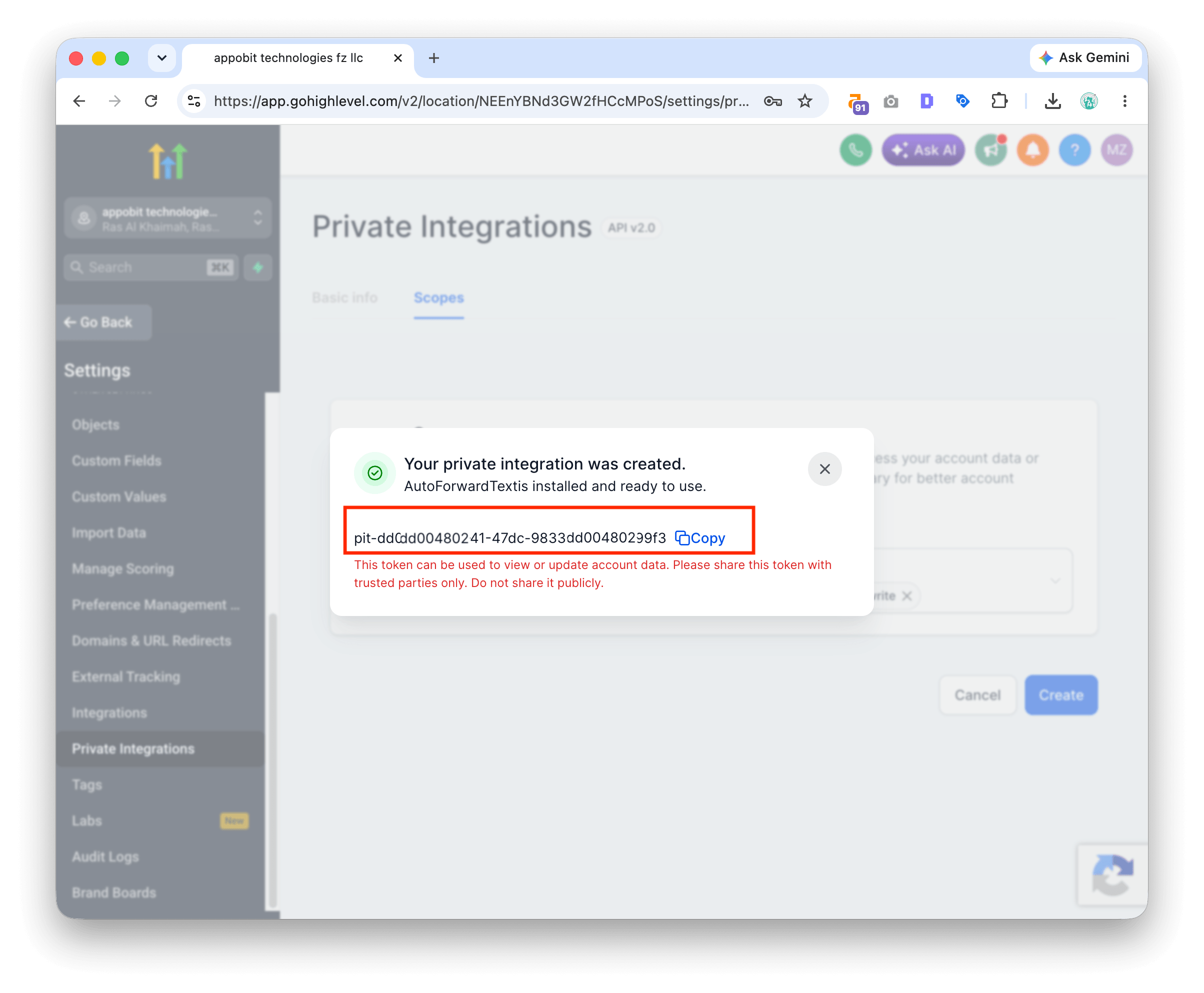
The token may only be displayed clearly at the time it is created. Store it securely.
Recommended GoHighLevel Scopes
AutoForward Text needs permission to work with the CRM records selected in your integration settings.
The required scopes may include access to:
- Contacts
- Opportunities
- Notes
- Tasks
- Location information
Enable read and write access where AutoForward Text needs to search for an existing record and create or update it.
Do not grant unrelated permissions that are not required by the integration.
Connect GoHighLevel to AutoForward Text
- Sign in to AutoForward Text.
- Open CRM Integrations.
- Find GoHighLevel.
- Select Connect GoHighLevel or Set Up GoHighLevel.
- Enter the Location ID.
- Paste the Private Integration access token.
- Save the connection.
- Run the test push.
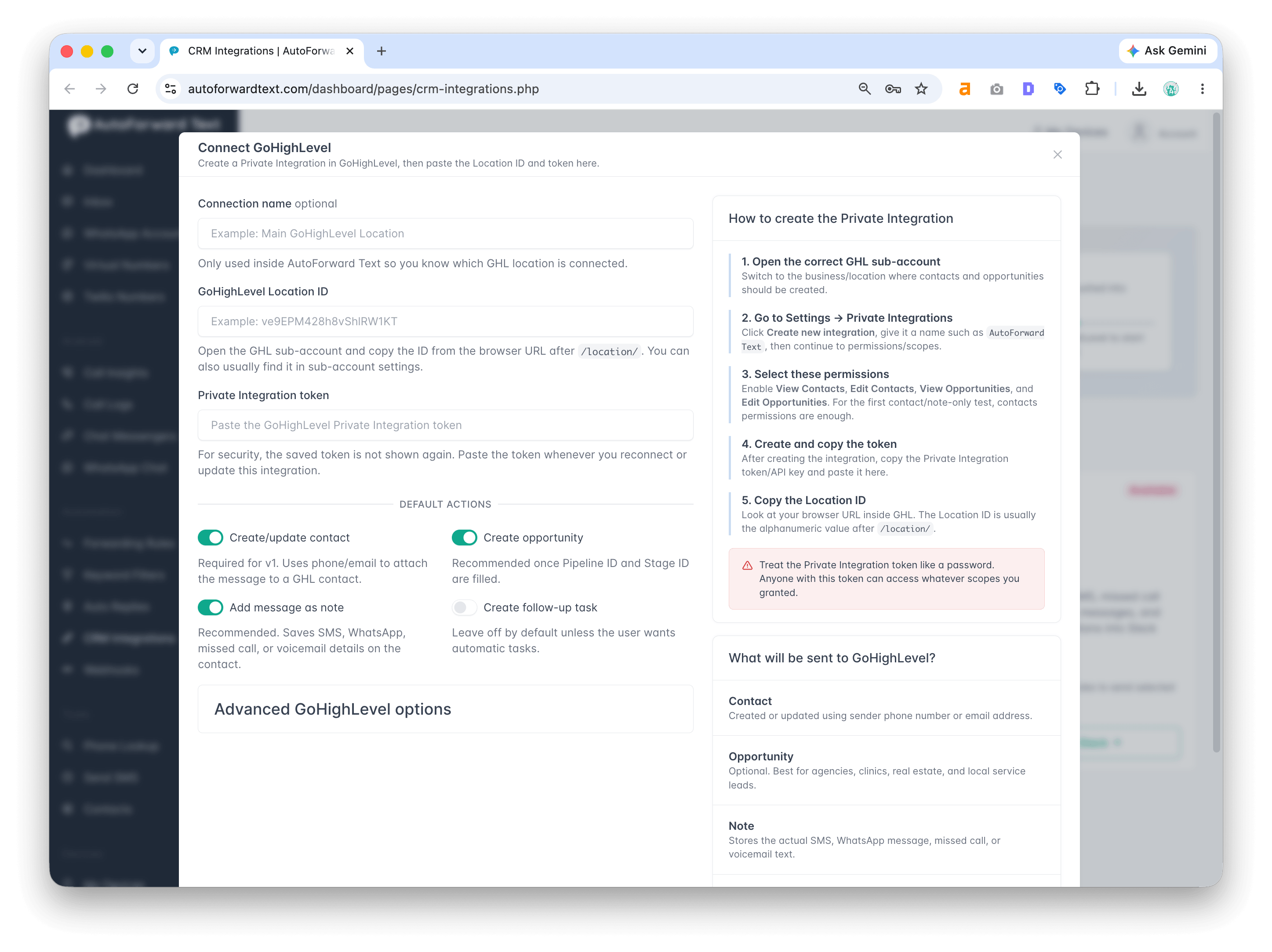
When connected successfully, the CRM Integrations page displays the connected GoHighLevel Location ID.
What AutoForward Text Can Create
Depending on your settings, AutoForward Text can:
- Search for an existing contact using the sender’s phone number
- Create a new GoHighLevel contact
- Add the incoming message as a note
- Create an opportunity
- Create a follow-up task
- Include message source and sender information
- Include missed-call or form-lead details
- Attach the activity to the relevant contact
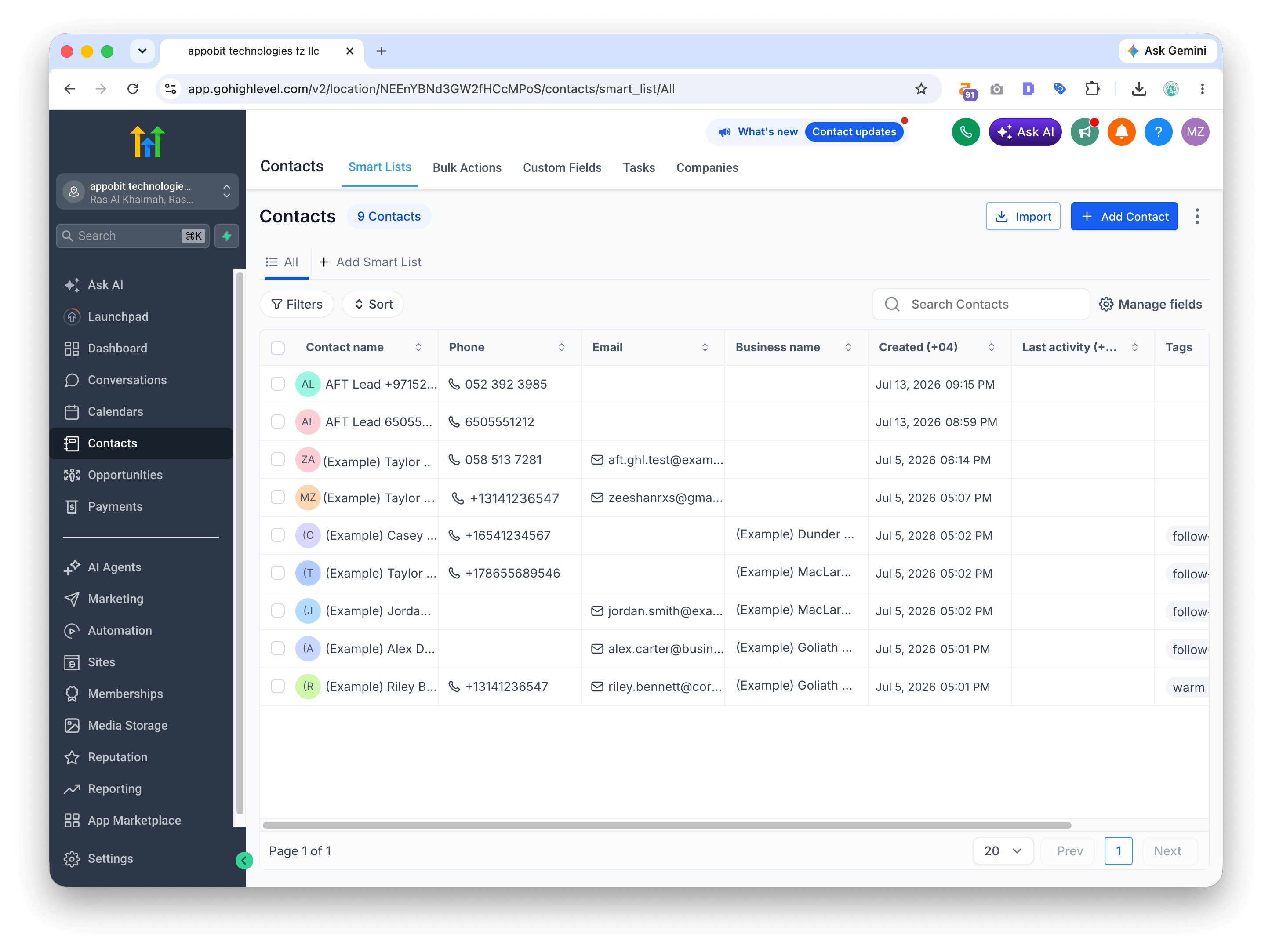
How GoHighLevel Forwarding Works
Once GoHighLevel is connected, supported incoming SMS and WhatsApp messages are automatically sent to the connected GoHighLevel location.
No separate forwarding rule is required.
The integration applies account-wide to messages received from:
- All connected devices
- All connected WhatsApp accounts
If more than one CRM is connected, each message is sent to every connected CRM.
To stop sending messages to GoHighLevel, disconnect the GoHighLevel integration.
Revise this troubleshooting section:
Test push works, but live messages do not appear
Confirm that the message appears in the AutoForward Text Inbox.
If it does, check:
- The Private Integration token is still active
- The required GoHighLevel scopes remain enabled
- The correct Location ID is connected
- The Private Integration has not been deleted or revoked
Recommended GoHighLevel Setup
For most lead-based businesses:
- Create or update the contact
- Add the original message as a note
- Create an opportunity only for new qualified leads
- Create a task for follow-up
- Include the source, such as SMS, WhatsApp, missed call, or form submission
- Avoid creating a new opportunity for every follow-up message
For example, the first message from a new lead might create an opportunity. Later messages from the same person should normally be added to the existing contact or opportunity.
Manage GoHighLevel
Use Manage GoHighLevel from the CRM Integrations page to:
- Update the Location ID
- Replace the access token
- Run another test
- Review connection status
- Disconnect the CRM
Disconnect GoHighLevel
Disconnecting GoHighLevel prevents future records from being sent.
It does not delete contacts, opportunities, notes, or tasks already created inside GoHighLevel.
You may also revoke or delete the Private Integration from GoHighLevel settings when the connection is no longer required.
GoHighLevel Troubleshooting
Invalid or unauthorized token
Confirm that:
- The Private Integration was created inside the correct location
- The access token was copied completely
- The required scopes were enabled
- The Private Integration has not been deleted or revoked
Incorrect Location ID
Copy the ID from the GoHighLevel URL.
For example:
/location/NEEnYBNd3GW2fHCcMPoS/settings/
The Location ID is:
NEEnYBNd3GW2fHCcMPoS
Test push works, but live messages do not appear
The CRM connection is valid. Check:
- Forwarding Rules
- Selected message source
- Keyword conditions
- Sender conditions
- Whether the incoming message appears in the AutoForward Text Inbox
Contact appears, but no opportunity was created
Contact creation and opportunity creation are separate options. Confirm that opportunity creation is enabled in the forwarding rule.
Records were added to the wrong location
Disconnect the CRM and reconnect it using the correct location’s Private Integration and Location ID.