Connect AutoForward Text to HubSpot CRM
AutoForward Text can send incoming SMS messages, WhatsApp messages, missed-call alerts, and lead notifications into HubSpot.
Incoming senders can be created as HubSpot contacts, while message content can be added as notes or timeline activity.
Before You Begin
You will need:
- An active AutoForward Text account
- Access to your HubSpot account
- Permission to install or authorize integrations in HubSpot
- At least one message source connected to AutoForward Text
A message source can be:
- Android or iPhone SMS forwarding
- A connected WhatsApp account
- A Twilio number
- An AutoForward virtual number
- A webhook or supported lead source
How to Connect HubSpot
- Sign in to AutoForward Text.
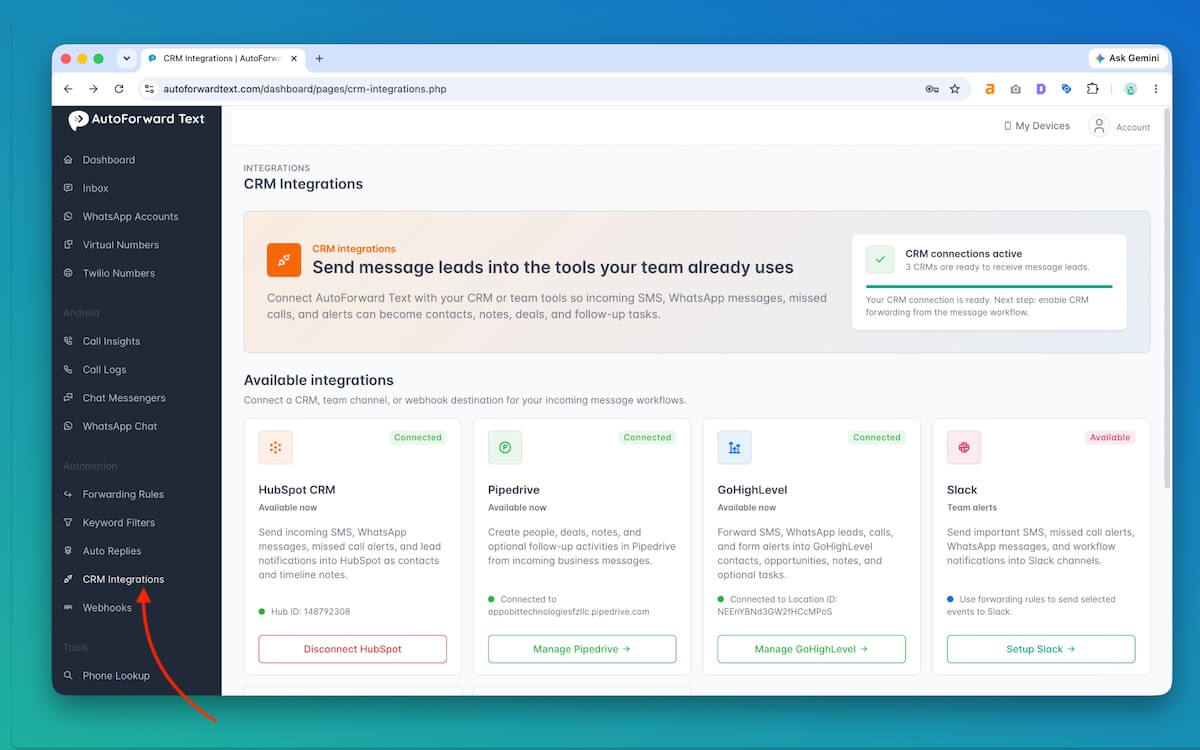
- Open CRM Integrations from the left-hand menu.
- Find HubSpot CRM.
- Select Connect HubSpot.
- Sign in to HubSpot when prompted.
- Choose the HubSpot account you want to connect.
- Review the requested permissions.
- Approve the connection.
- Return to AutoForward Text.
The HubSpot card should now show Connected along with the connected Hub ID.
What AutoForward Text Can Create in HubSpot
Depending on your configuration, AutoForward Text can:
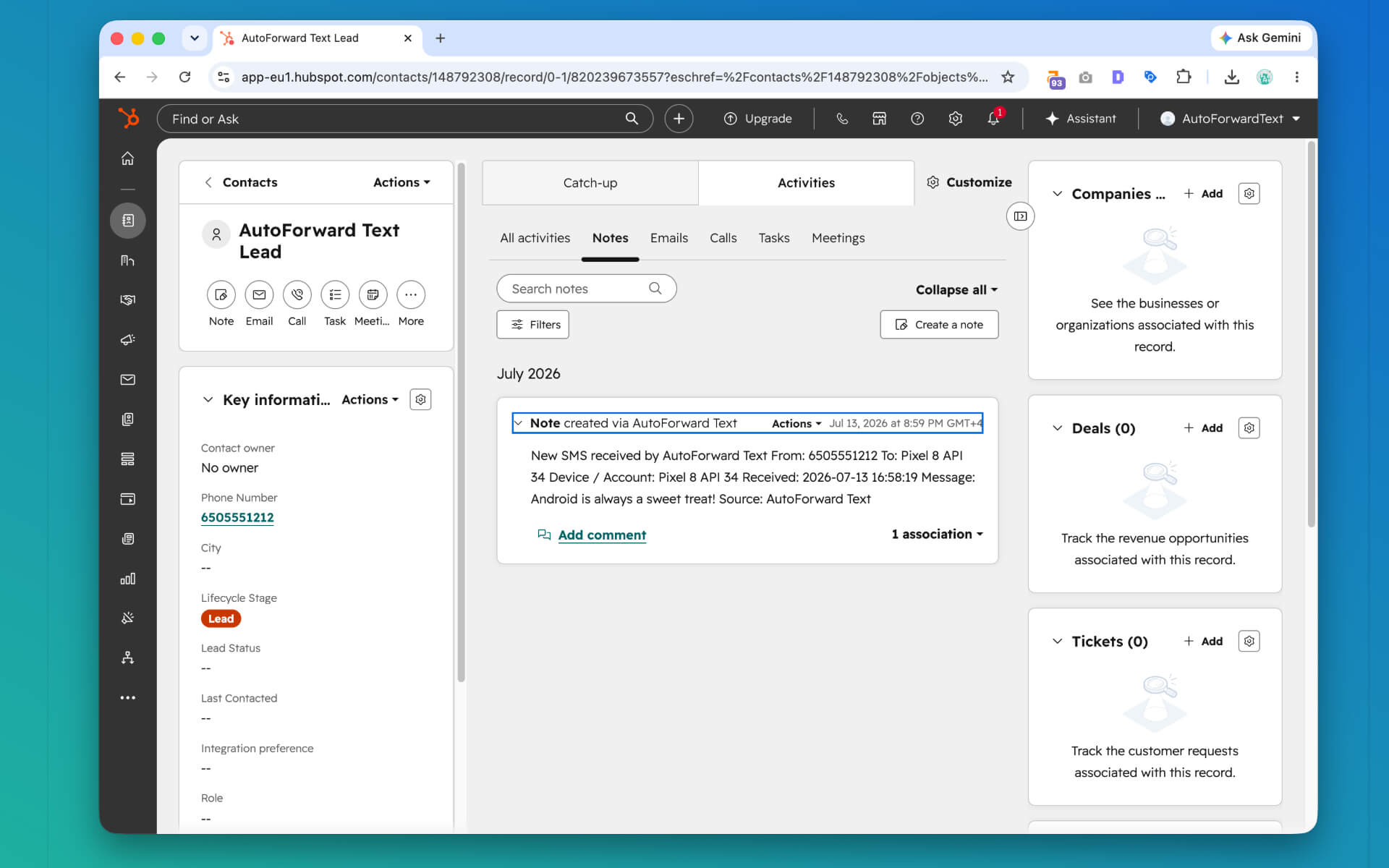
- Find an existing HubSpot contact by phone number
- Create a contact when no matching contact exists
- Add an incoming message as a note
- Record the message source
- Include the sender’s name, phone number, and email when available
- Attach missed-call or lead information to the contact
The message body can be included or omitted depending on the forwarding configuration.
How HubSpot Forwarding Works
Once HubSpot is connected, supported incoming SMS and WhatsApp messages are automatically sent to HubSpot.
You do not need to create a forwarding rule or separately enable HubSpot forwarding.
The integration applies to:
- All connected mobile devices
- All connected WhatsApp accounts
- All supported incoming SMS messages
- All supported incoming WhatsApp messages
If other CRM platforms are also connected, the same messages will also be sent to those CRMs.
To stop messages from being sent to HubSpot, disconnect HubSpot from the CRM Integrations page.
Also revise the troubleshooting section:
HubSpot is connected, but no message was added
Confirm that the incoming message appears in the AutoForward Text Inbox.
If it appears in the Inbox but not in HubSpot:
- Run the HubSpot connection test
- Confirm the correct HubSpot account is connected
- Check whether HubSpot access has been revoked
- Disconnect and reconnect HubSpot if necessary
There is no separate HubSpot forwarding rule to enable.
Recommended Setup
For most businesses, a sensible configuration is:
- Match contacts by phone number
- Create a contact only when one does not already exist
- Add each incoming message as a note
- Include the source and received date
- Create deals only for messages that qualify as leads
- Exclude OTP messages, automated alerts, and personal conversations
Creating a new deal for every SMS or WhatsApp message will make HubSpot difficult to manage.
Disconnect HubSpot
To remove the connection:
- Open CRM Integrations.
- Find HubSpot CRM.
- Select Disconnect HubSpot.
- Confirm the disconnection.
Disconnecting HubSpot stops future CRM pushes. It does not remove contacts, notes, or other records already created in HubSpot.
HubSpot Troubleshooting
HubSpot is connected, but no message was added
Check that CRM forwarding is enabled under Forwarding Rules.
Also confirm that the message reached the AutoForward Text Inbox. If it did not reach the Inbox, the problem is with the device or message connection rather than HubSpot.
The wrong HubSpot account was connected
Disconnect HubSpot and connect it again. During authorization, carefully select the correct HubSpot portal or account.
A contact was created without a name
Some SMS and WhatsApp events contain only a phone number. AutoForward Text cannot always determine the sender’s real name.
The CRM contact can be updated manually later.
Existing contacts are not being matched
Store phone numbers in HubSpot using complete international format where possible.
Example:
+15012345671