Download, Install, and Set Up Guide for Android Devices
This guide will help you install and configure AutoForwardText on your Android device.
Setup usually takes less than 5 minutes.
Requirements
Before starting, make sure you have:
- An Android device running Android 8 or newer
- An active internet connection
- An AutoForwardText account, or an email address you can use to create one
Step 1: Install AutoForwardText from Google Play
Open the AutoForwardText listing on Google Play:
Install AutoForwardText from Google Play
- Tap Install.
- Wait for the installation to finish.
- Tap Open.
Installing through Google Play also makes it easier to receive future app updates automatically.
Step 2: Sign In or Create an Account
Open AutoForwardText and enter your:
- Email address
- Password
If you do not have an account yet, select the sign-up option in the app or visit:
Create an AutoForwardText Account
Step 3: Grant the Required Permissions
AutoForwardText needs permission to access the information you choose to forward. The permissions requested depend on the features you enable.
You may be asked to allow:
- SMS access: Required to forward incoming text messages.
- Notification access: Required to forward notifications from selected apps.
- Contacts access: Optional. Used to include saved contact names.
- Call log access: Optional. Required for call-log and missed-call forwarding.
- Phone access: Optional. Required for certain call-related features.
- Notification access: Required to forward notifications from other applications. This feature is available only in the full APK version and is not included in the Google Play version.
Follow the instructions shown in the app and tap Allow for the features you want to use.
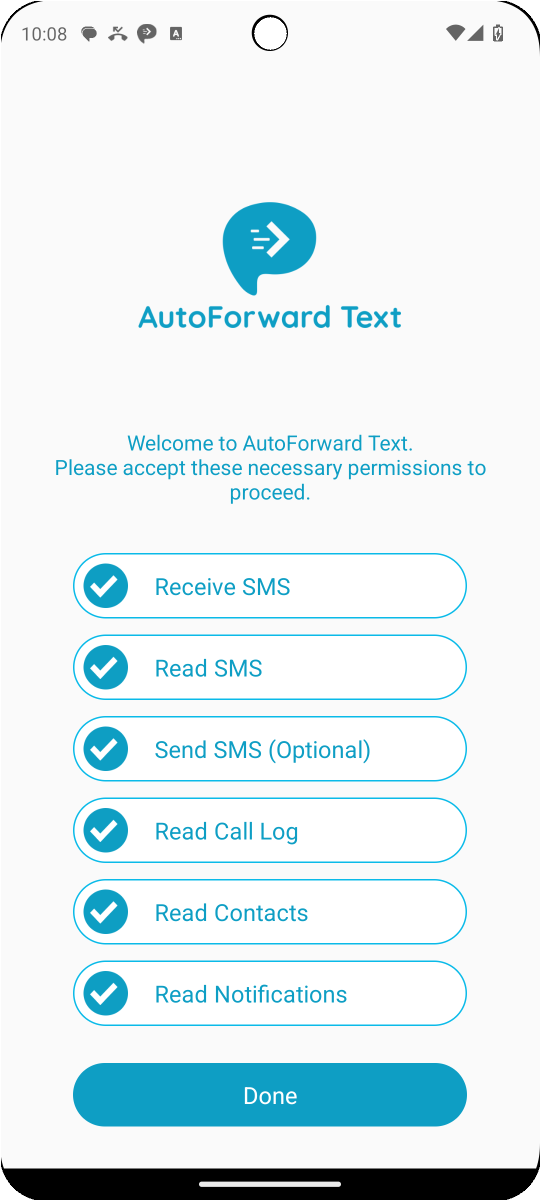
If you skip a permission, the feature that depends on it may not work.
Step 4: Allow AutoForwardText to Run in the Background
Some Android manufacturers restrict apps that run in the background. This can delay or stop message forwarding.
To keep AutoForwardText running reliably:
- Open your Android device’s Settings.
- Go to Apps and select AutoForwardText.
- Open Battery or Battery usage.
- Select Unrestricted or Don’t optimize.
- Allow background activity if that option is shown.
The exact names of these settings vary by device manufacturer and Android version.
On Samsung, Xiaomi, Redmi, Huawei, OnePlus and similar devices, you may also need to allow AutoForwardText to start automatically and remove it from sleeping-app lists.
Step 5: Create a Forwarding Rule
After connecting your Android device:
- Open the AutoForwardText Dashboard.
- Go to Forwarding Rules.
- Select the option to create a new rule.
- Choose what you want to forward.
- Select one or more destinations.
- Save the rule.
Supported destinations include:
- Another phone number
- Slack
- Webhooks
- API endpoints and automation platforms
Your Android device is now ready to process messages using your forwarding rules.
Test Your Setup
Send a text message to the Android device you connected.
If the setup is working correctly:
- The message should appear in your AutoForwardText dashboard.
- Matching forwarding rules should run automatically.
- The message should arrive at the selected destination.
- Automatic replies should work if you have enabled and configured them.
Allow a short amount of time for the first message to be processed.
Troubleshooting
The device does not appear in my dashboard
Confirm that you signed into the Android app and dashboard using the same AutoForwardText account. Also verify that the device has an active internet connection.
Messages are not forwarding
Check that:
- SMS access is enabled.
- The AutoForwardText background service is running.
- Battery optimization is disabled for AutoForwardText.
- Background activity is allowed.
- The device has an active internet connection.
- Your forwarding rule is active and matches the incoming message.
App notifications are not forwarding
App-notification forwarding is not available in the Google Play version of AutoForwardText.
If you need to forward notifications from apps such as banking apps, WhatsApp or other installed applications, download and install the full APK version:
Download AutoForwardText with Notification Forwarding
Because this version is installed directly rather than through Google Play, Android may ask you to allow installation from your browser. Updates to the APK version may also need to be installed manually.
After installing it, open your Android settings and enable Notification access for AutoForwardText. Then confirm that the applications you want to monitor are selected in your forwarding rule.
Messages are delayed
Most delays are caused by Android battery or background restrictions. Set AutoForwardText’s battery usage to Unrestricted and remove it from sleeping or deep-sleeping app lists.
The app stops working after some time
Samsung, Xiaomi, Redmi, Huawei and some other manufacturers may automatically stop background apps. Allow background activity, enable automatic startup where available, and exclude AutoForwardText from battery optimization.
I cannot find AutoForwardText on Google Play
Make sure you are opening Google Play on a compatible Android device while signed into your Google account. You can also open the listing directly:
View AutoForwardText on Google Play
Still need help? Contact AutoForwardText Support.