How to Forward Google Form Responses to WhatsApp or SMS
AutoForwardText can automatically forward every new Google Form response to WhatsApp or SMS.
You can send form submissions to:
- a WhatsApp contact
- a WhatsApp group
- an Android SMS gateway
- AutoForwardText Shared SMS
- a connected Twilio number
Your Google Form continues working normally. Google still stores the original response, while AutoForwardText receives a copy and forwards it to the destinations you choose.
Step 1: Create a Google Forms Connection
From the AutoForwardText dashboard, open:
Workflows → Google Forms to WhatsApp / SMS
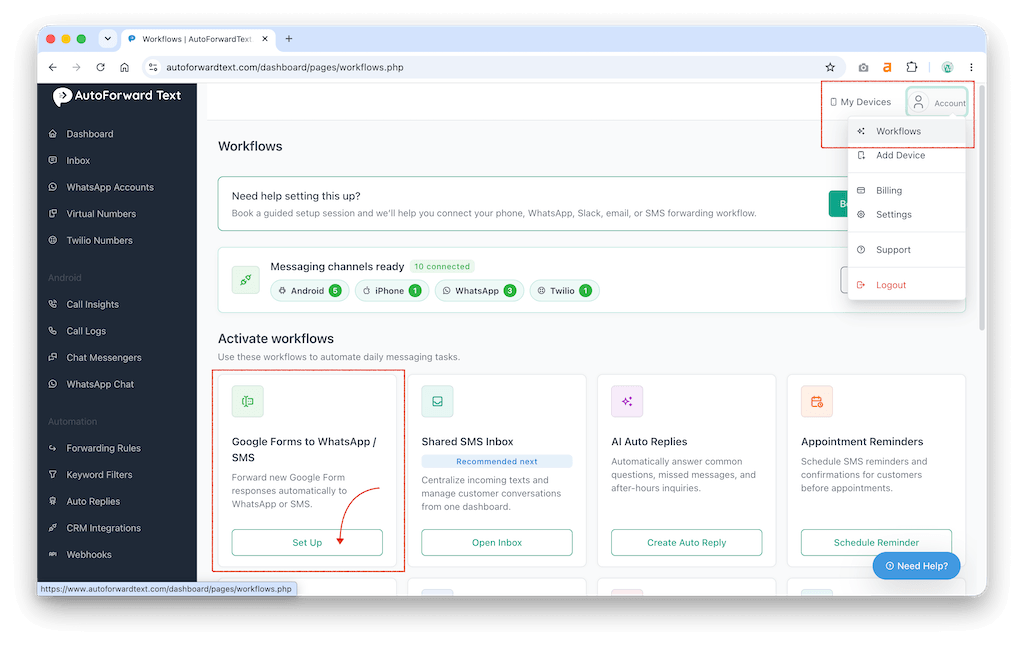
Click Connect Google Form.
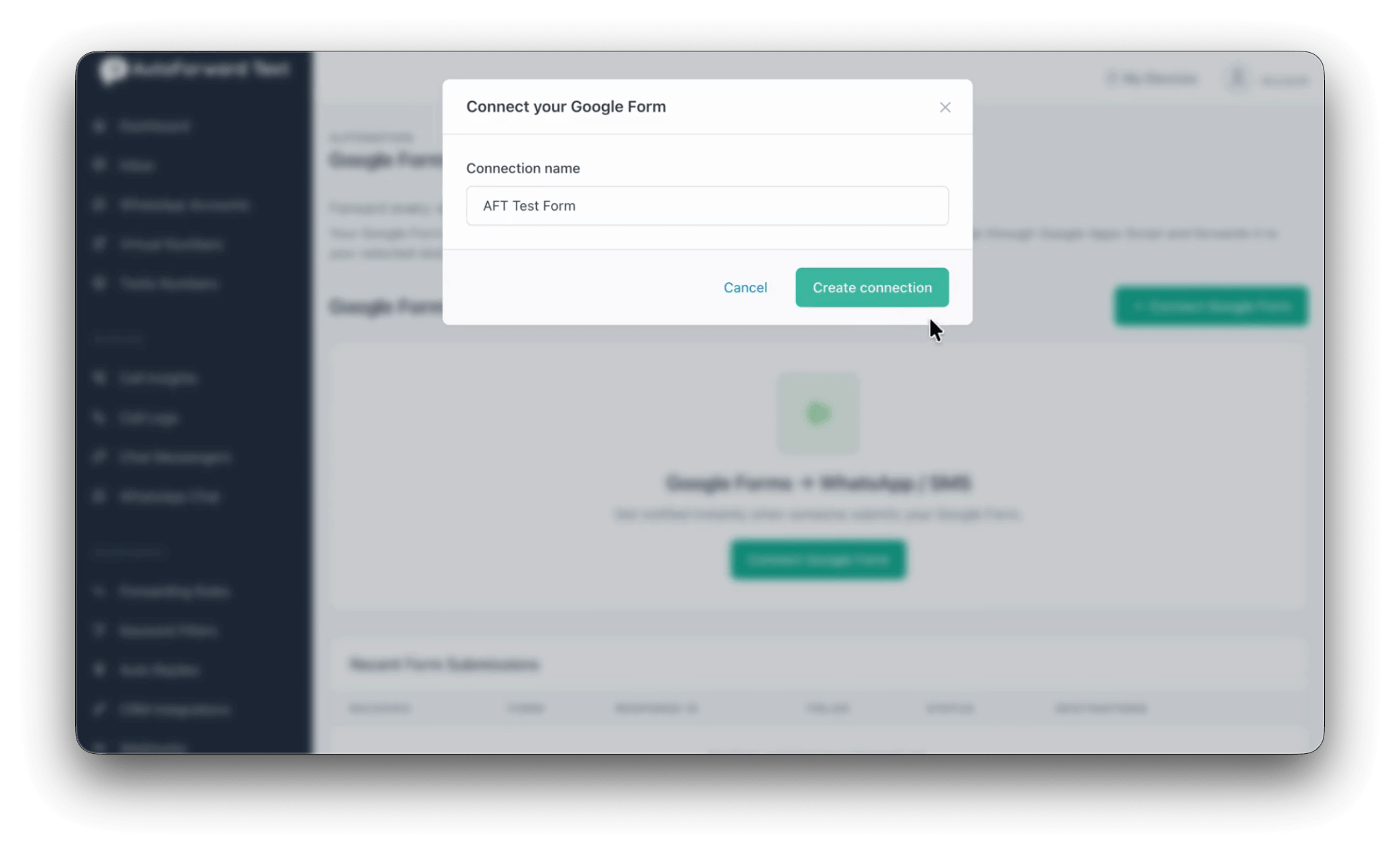
Enter a name for the connection, such as:
Website Contact Form
Then click Create connection.
Step 2: Copy Your AutoForwardText Webhook URL
After creating the connection, AutoForwardText generates a unique webhook URL for your Google Form.
It will look similar to:
https://www.autoforwardtext.com/dashboard/f/gf_xxxxxxxxx
Click Copy.
You normally do not need to edit this URL manually.
Step 3: Add the AutoForwardText Script to Google Forms
Open your Google Form in edit mode.
From the Google Form, open Apps Script.
AutoForwardText provides a ready-to-use Apps Script containing your unique webhook URL.
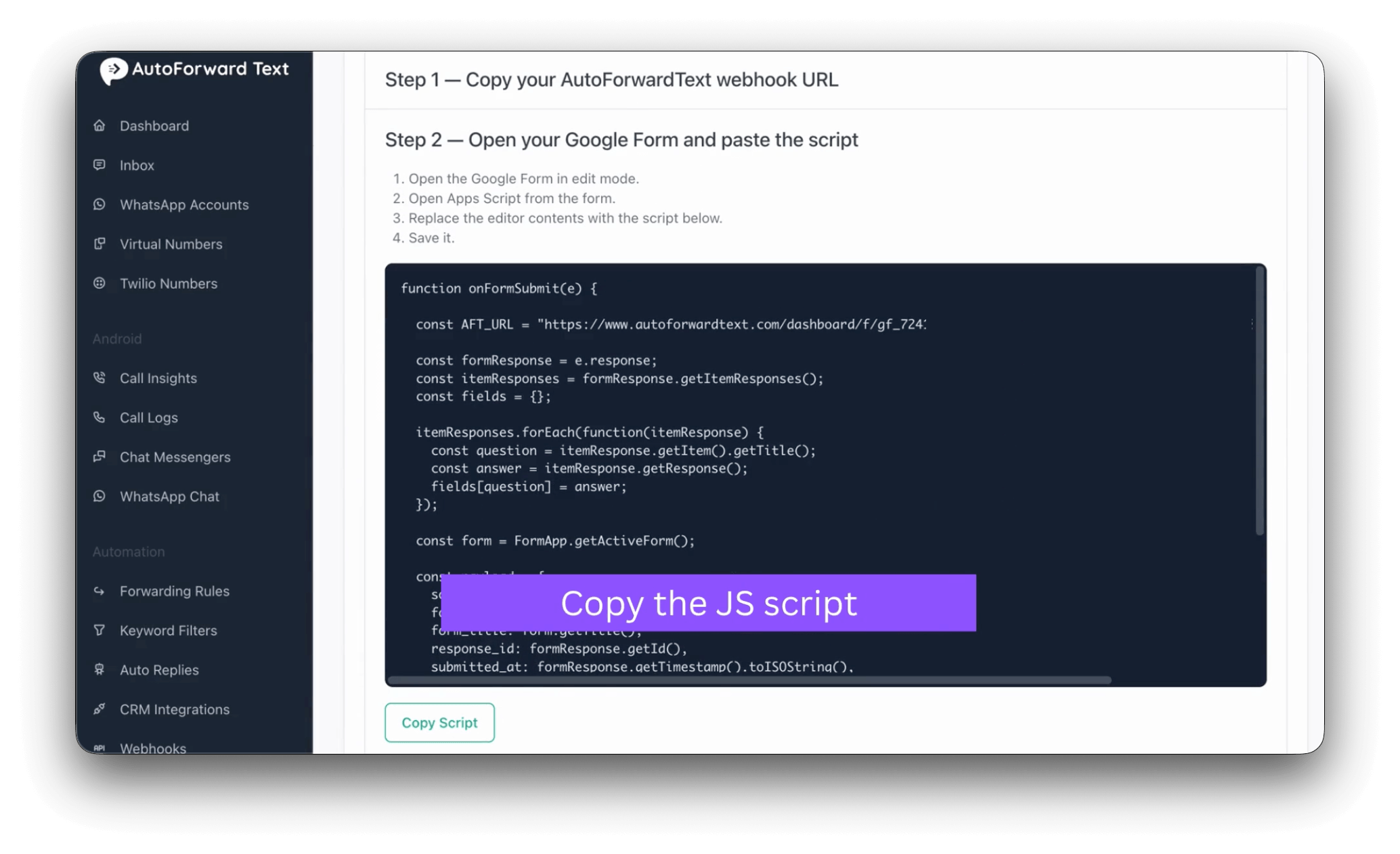
Click Copy Script in AutoForwardText, then paste the script into the Apps Script editor.
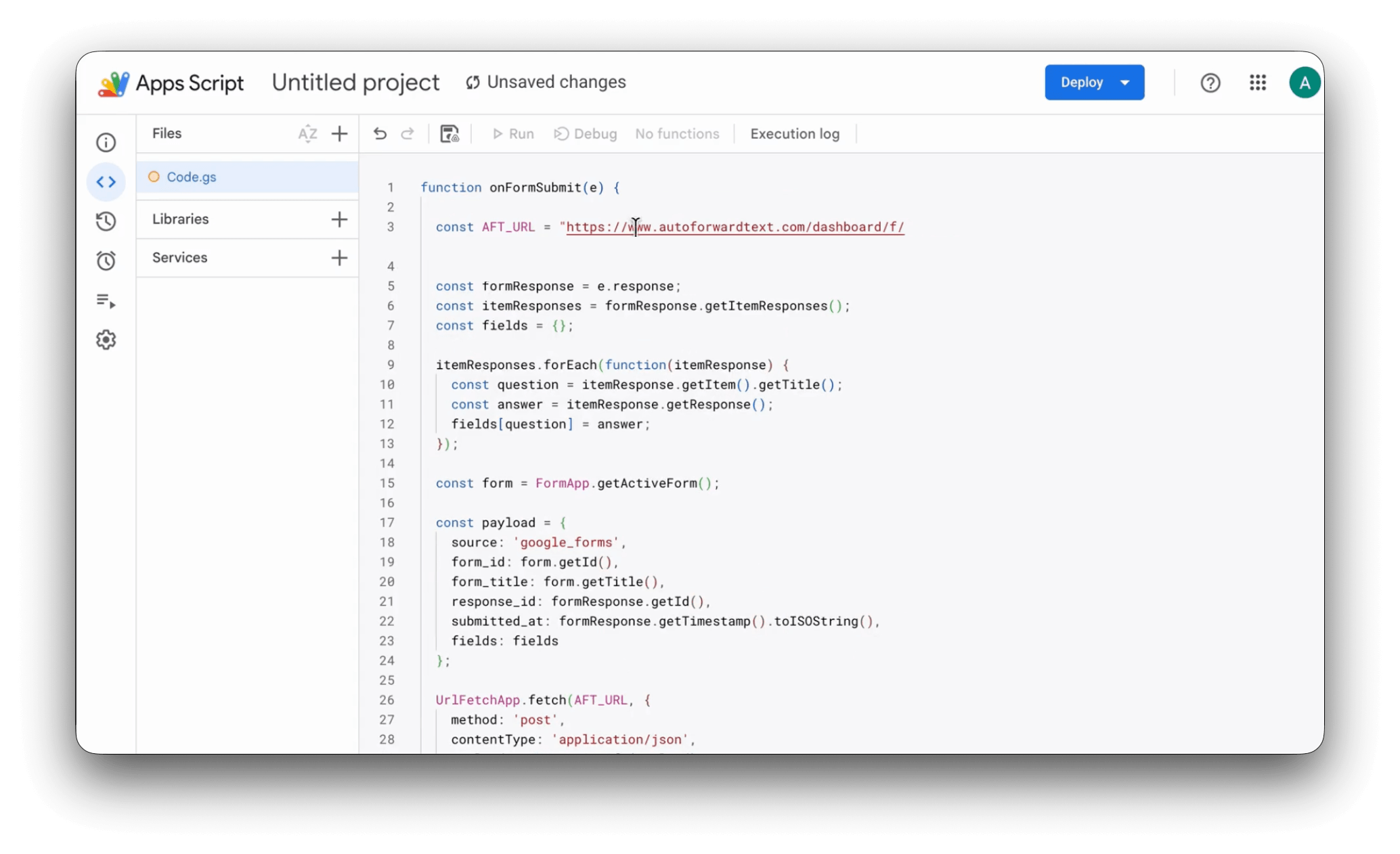
Replace any existing sample code in the editor.
Click Save.
Step 4: Add the Form Submission Trigger
Inside Google Apps Script, open Triggers.
Click Add Trigger and configure it as follows:
-
Function: onFormSubmit
-
Event source: From form
-
Event type: On form submit
Click Save and approve the requested Google permissions.
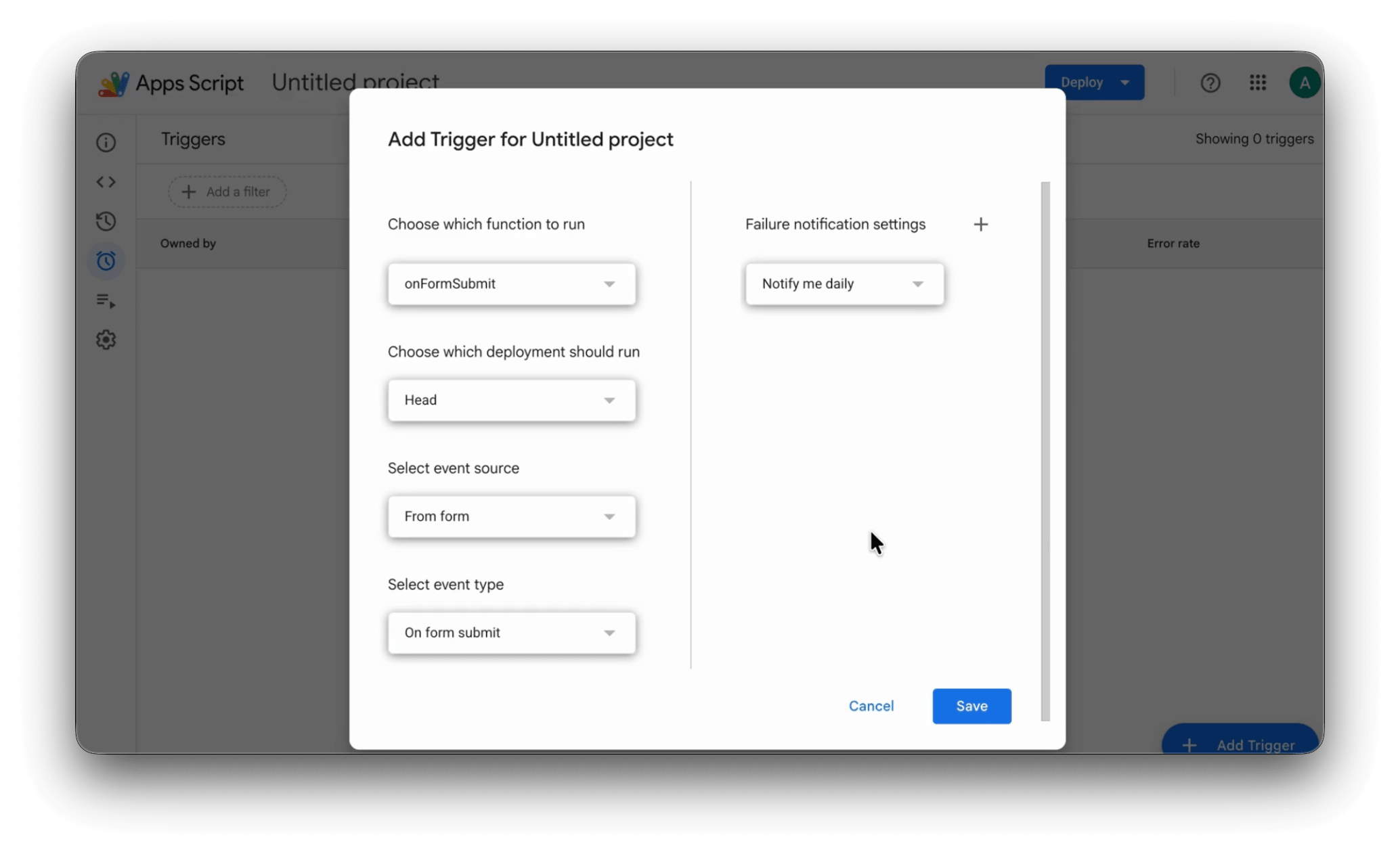
You do not need to deploy the Apps Script as a Web App.
The form submission trigger runs the script automatically whenever somebody submits your Google Form.
Step 5: Choose Where Form Responses Should Be Forwarded
Return to the Google Forms connection in AutoForwardText.
Under Forward To, click Add destination.
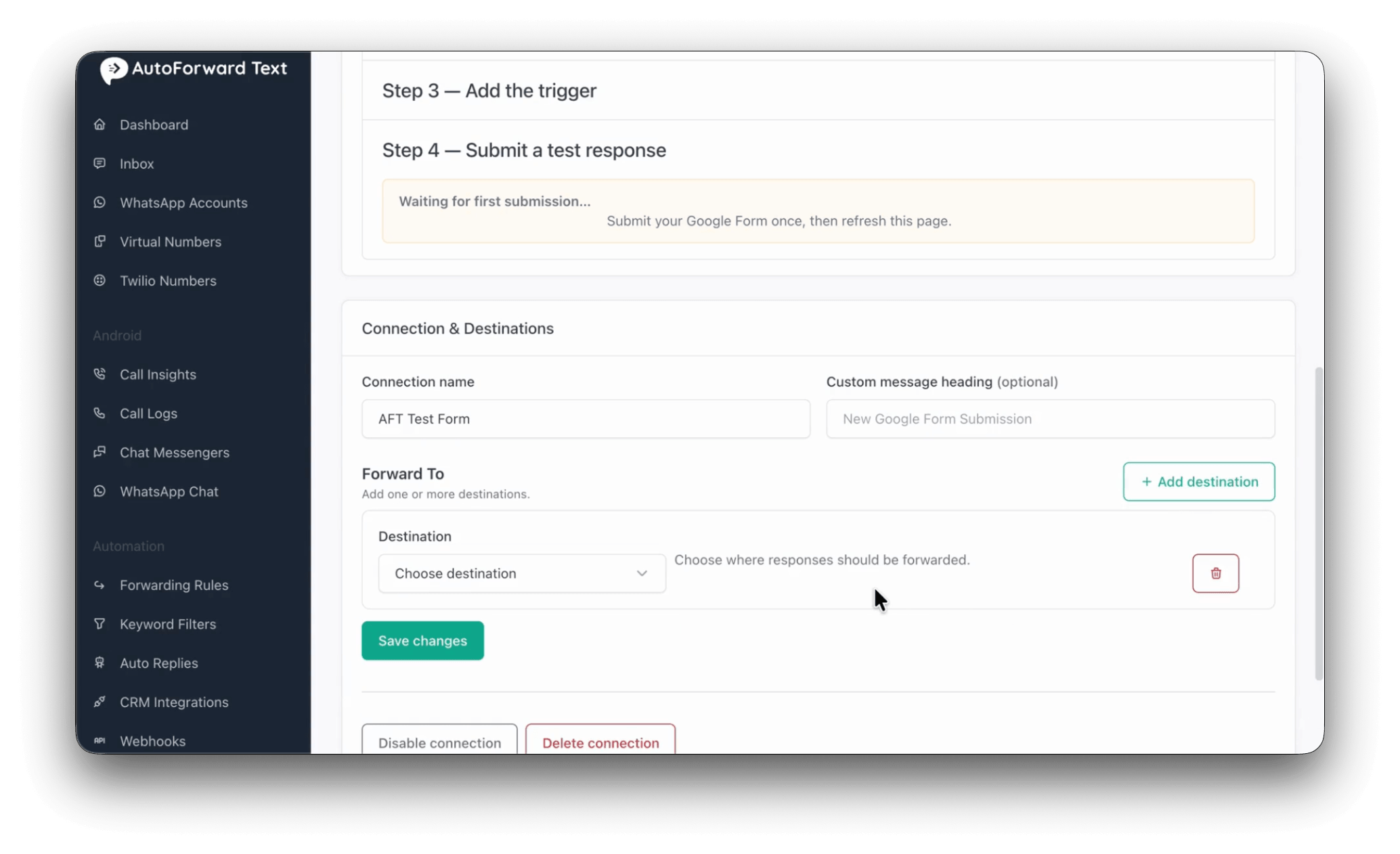
You can add one or more destinations.
Forward to WhatsApp
Choose WhatsApp.
Select your connected WhatsApp QR account, then choose the WhatsApp contact or group that should receive the form submission.
For example:
Google Form
↓
AutoForwardText
↓
WhatsApp Group: Sales Leads
Forward by SMS
You can also forward Google Form responses by SMS.
Available SMS options may include:
-
SMS — Android Gateway
-
SMS — AutoForwardText Shared
-
SMS — Twilio
Select the SMS method and enter the destination phone number.
You can add multiple destinations to the same Google Form connection.
For example:
Google Form
├── WhatsApp → Sales Group
└── SMS → Sales Manager
Click Save changes when finished.
Step 6: Submit a Test Response
Open the public version of your Google Form and submit a test response.
For example:
Name: John Smith
Email: john@example.com
Phone: +15551234567
Message: I would like a quote
Return to AutoForwardText and refresh the Google Forms page.
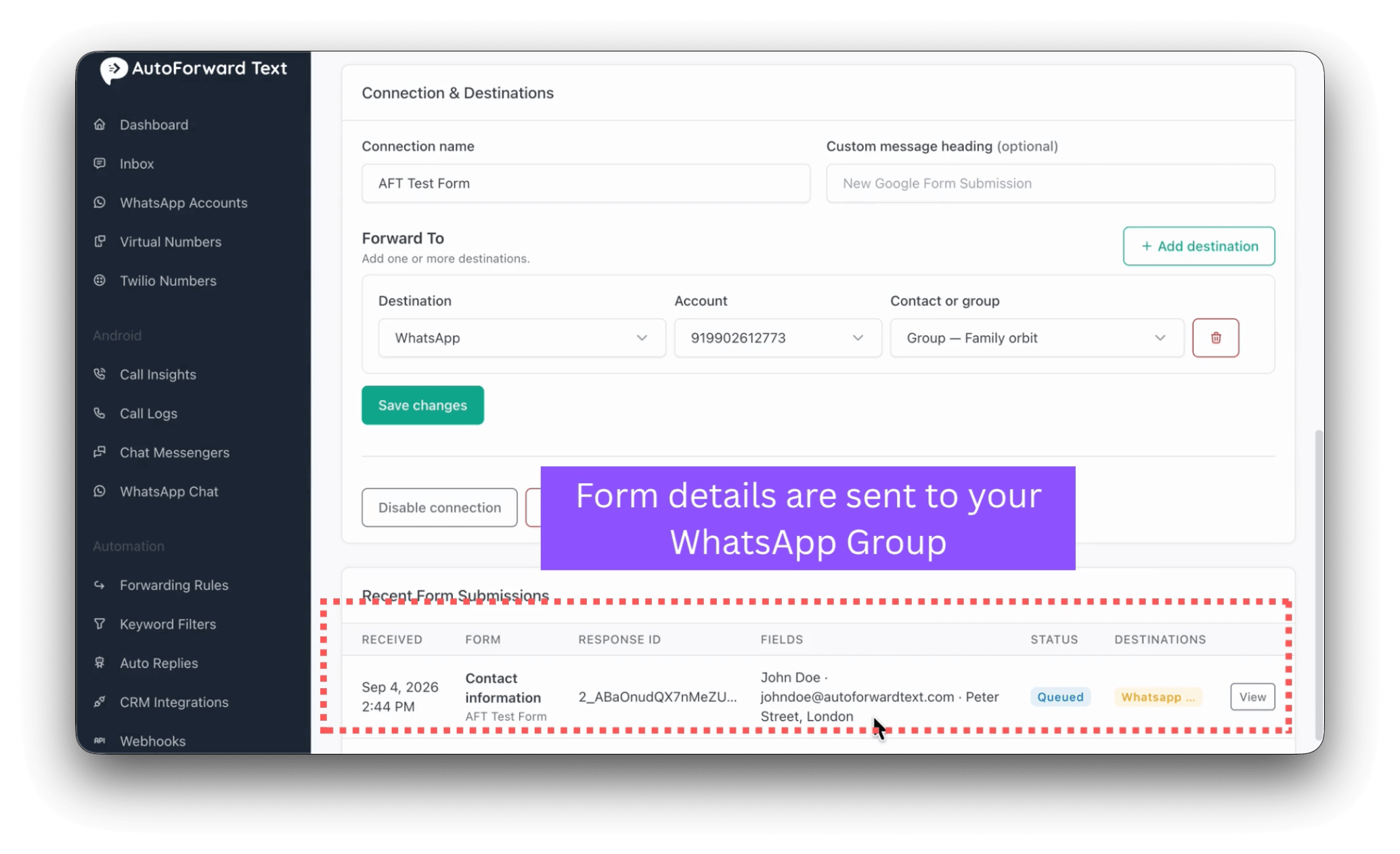
Once the response is received, the connection will show Connected along with:
-
Form title
-
Google Form ID
-
Last response received
-
Latest webhook status
Step 7: Check Recent Form Submissions
At the bottom of the page, open Recent Form Submissions.
This shows recent responses received from Google Forms and the delivery status for each destination.
You may see statuses such as:
-
Pending
-
Sent
-
Failed
For example:
Contact information
John Smith · john@example.com · I would like a quote
WhatsApp ✓
SMS ✓
Click View to see the full form response.
What Does the WhatsApp Message Look Like?
A typical forwarded Google Form response may look like:
New Google Form Submission
Website Contact Form
Name: John Smith
Email: john@example.com
Phone: +15551234567
Message: I would like a quote
The form can be forwarded to either an individual WhatsApp chat or a WhatsApp group.
Can I Forward One Google Form to Multiple Destinations?
Yes.
You can configure multiple destinations for the same Google Form.
For example:
Google Form
├── WhatsApp Sales Group
├── SMS to Manager
└── SMS to Support Phone
Each destination is processed independently.
Does AutoForwardText Replace My Google Form?
No.
Your existing Google Form continues to work normally.
Google continues recording the response as usual. The Apps Script simply sends a copy of each new submission to AutoForwardText so it can be forwarded to WhatsApp or SMS.
Do I Need Zapier or Make?
No.
For this setup, Google Forms sends the response directly to AutoForwardText using Google Apps Script.
The basic flow is:
Google Form
↓
Google Apps Script
↓
AutoForwardText
↓
WhatsApp / SMS
No separate automation platform is required.