How to Reply to a Forwarded WhatsApp Message by Email
AutoForward Text lets you reply to incoming WhatsApp messages in two ways:
-
By replying to the forwarded email
-
Directly from the AutoForward Text dashboard
How to Reply from Email
When WhatsApp email forwarding is enabled, incoming WhatsApp messages are sent to your selected email address.
To reply:
-
Open the forwarded WhatsApp email.
-
Click Reply in Gmail, Outlook, Apple Mail, or your preferred email application.
-
Type your response.
-
Send the email.
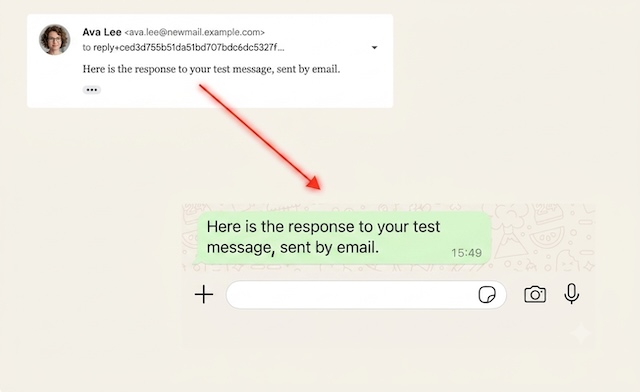
AutoForward Text will route your response back to the same WhatsApp chat from which the original message was received.
You do not need to open WhatsApp or the AutoForward Text dashboard.
Important
Do not change the automatically generated reply email address.
The reply address contains a secure token that identifies the correct AutoForward Text account and WhatsApp conversation.
Your reply must also be sent from the same email address that received the forwarded WhatsApp message.
Requirements
For reply-by-email to work:
-
The WhatsApp account must remain connected to AutoForward Text.
-
Email forwarding must be enabled for the WhatsApp account.
-
The reply must be sent from the authorized forwarding email address.
-
The original forwarded email must still contain its AutoForward Text reply address.
Does the Reply Go Back Through WhatsApp?
Yes.
The response is sent through the connected WhatsApp account and delivered to the original WhatsApp chat.
It is not sent as an SMS or ordinary email.
Can I Reply to a WhatsApp Group?
Yes, provided the original forwarded message came from a supported WhatsApp group chat.
Your email reply will be sent back to that same group conversation.
Can I Start a New WhatsApp Conversation by Email?
No.
Reply-by-email is designed to respond to an existing forwarded WhatsApp message.
To start a new conversation, use WhatsApp directly or send the message from the AutoForward Text dashboard where supported.
What Information Is Included in the Forwarded Email?
The forwarded email includes the main details of the incoming WhatsApp message:
- The sender’s name
- The sender’s WhatsApp number
- The message content
- The date and time the message was received
- The message direction
- The connected WhatsApp account that received the message
The email subject also identifies the sender, for example:
New WhatsApp From John Smith
This makes it easy to understand who contacted you and which WhatsApp account received the message before replying.
Attachments, images, voice notes, documents, and other media may not be included in the forwarded email unless specifically supported. The message will still appear in the AutoForward Text dashboard logs.
Troubleshooting
The reply was not delivered
Check that the connected WhatsApp account is still active under WhatsApp Accounts.
The reply was rejected
Make sure you replied from the same email address configured to receive the forwarded messages.
I changed the recipient address
Open the original forwarded email and click Reply again. Do not manually edit the automatically generated reply address.
The Reply button is not visible in the dashboard
Go to WhatsApp Accounts, scroll down to the message history, and scroll horizontally to the far-right side of the table.
The Reply button appears in the actions column.