How to Connect WhatsApp to AutoForwardText
AutoForwardText allows you to connect your WhatsApp account and automatically forward messages, notifications, and alerts to destinations such as email, webhooks, and other WhatsApp numbers.
Setup takes less than 2 minutes.
Step 1: Open WhatsApp Accounts
- Log in to your AutoForwardText dashboard
- Open WhatsApp Accounts
- Select Connect WhatsApp Account
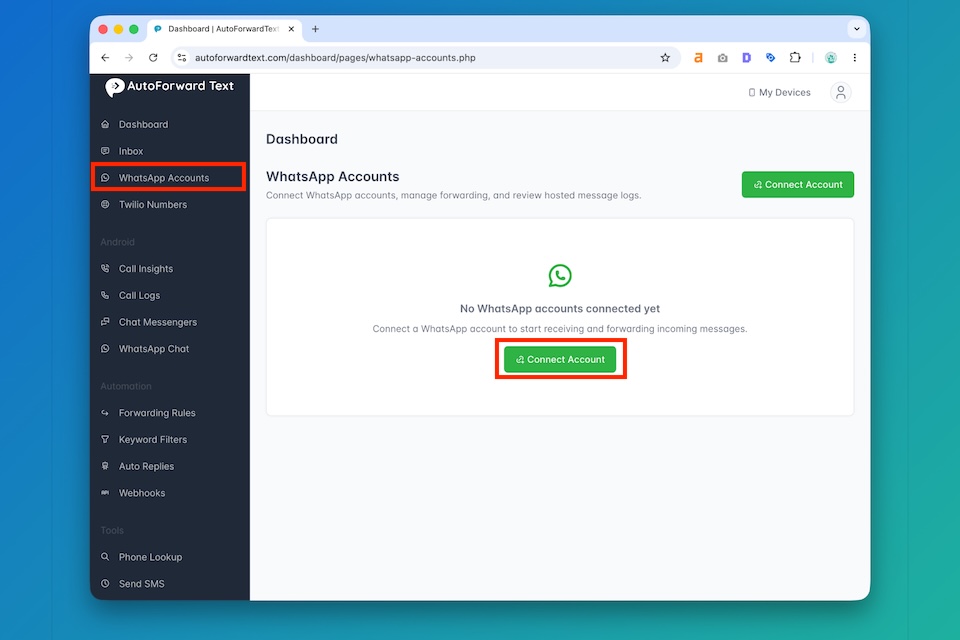
Step 2: Scan the QR Code
A QR code will appear.
On your phone:
- Open WhatsApp
- Tap Settings
- Select Linked Devices
- Tap Link a Device
- Scan the QR code shown in AutoForwardText
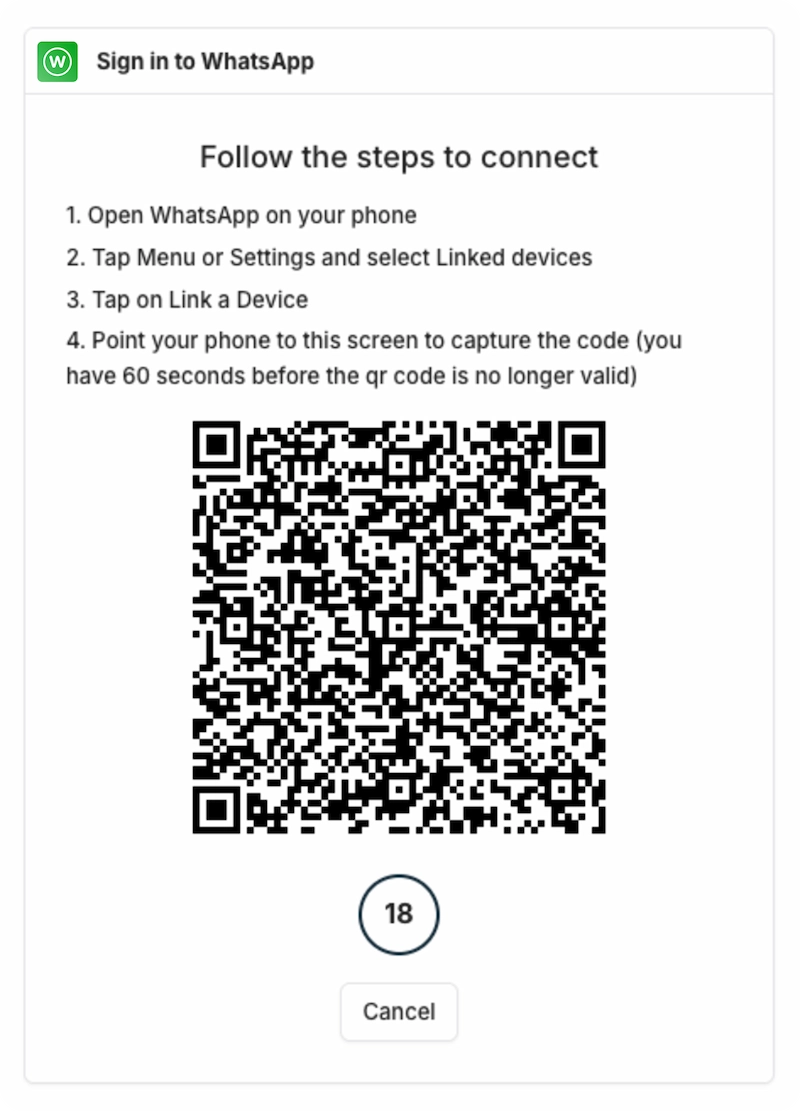
Step 3: Wait for Connection
After scanning:
• Your account status changes to Connected
• Last activity timestamps begin updating
• Incoming messages start appearing in Message Logs
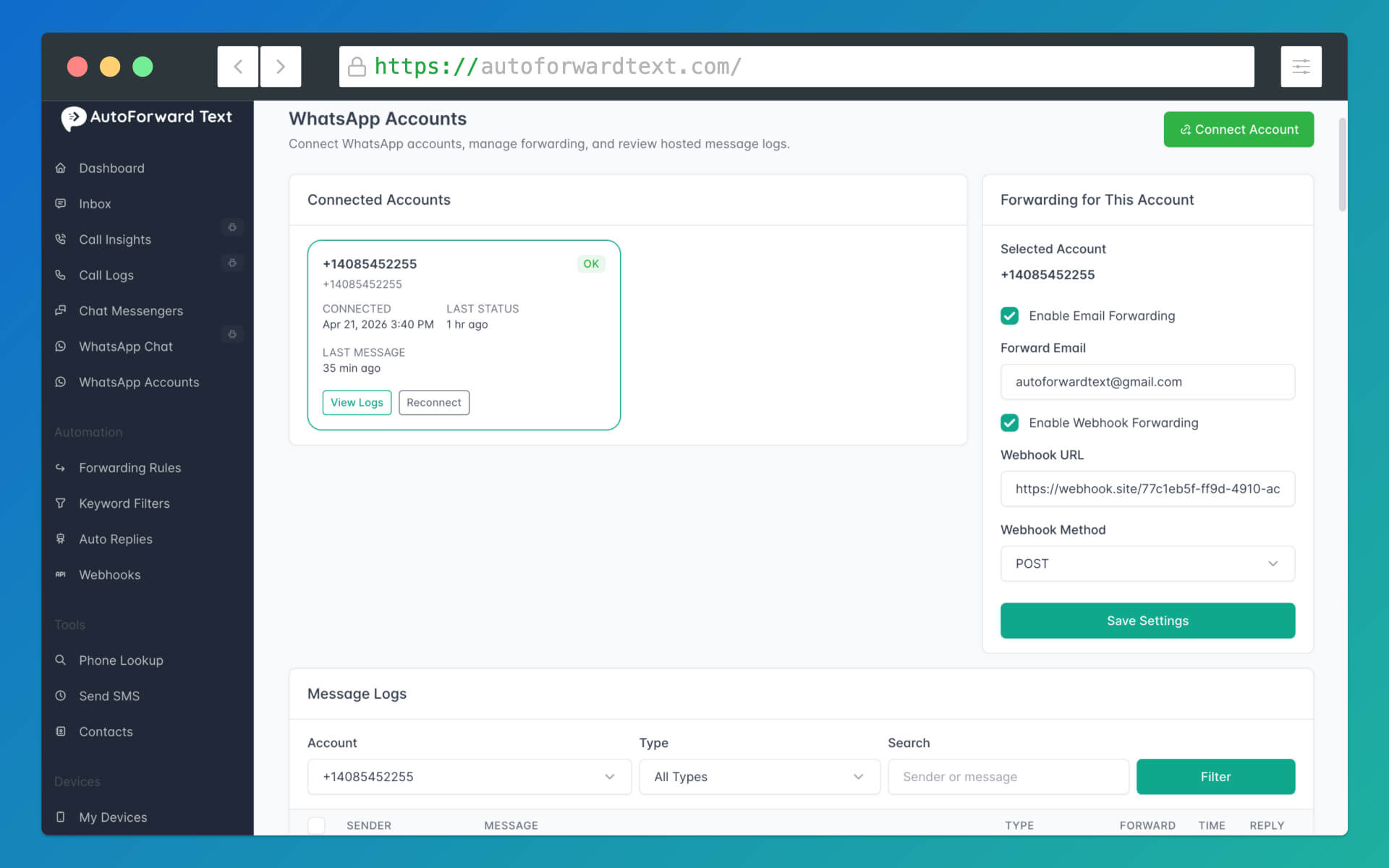
Step 4: Configure Forwarding
Select your connected WhatsApp account.
Available forwarding options include:
Forward to Email
Enter your email address:
Example:
john@example.comForward to Webhook
Enter:
• Webhook URL
• Request method (POST/GET)
Example:
https://example.com/webhookForward to Another WhatsApp Number
Select:
Send using WhatsApp account
Choose the connected account and enter destination:
Example:
+14155552671Use full international format including country code.
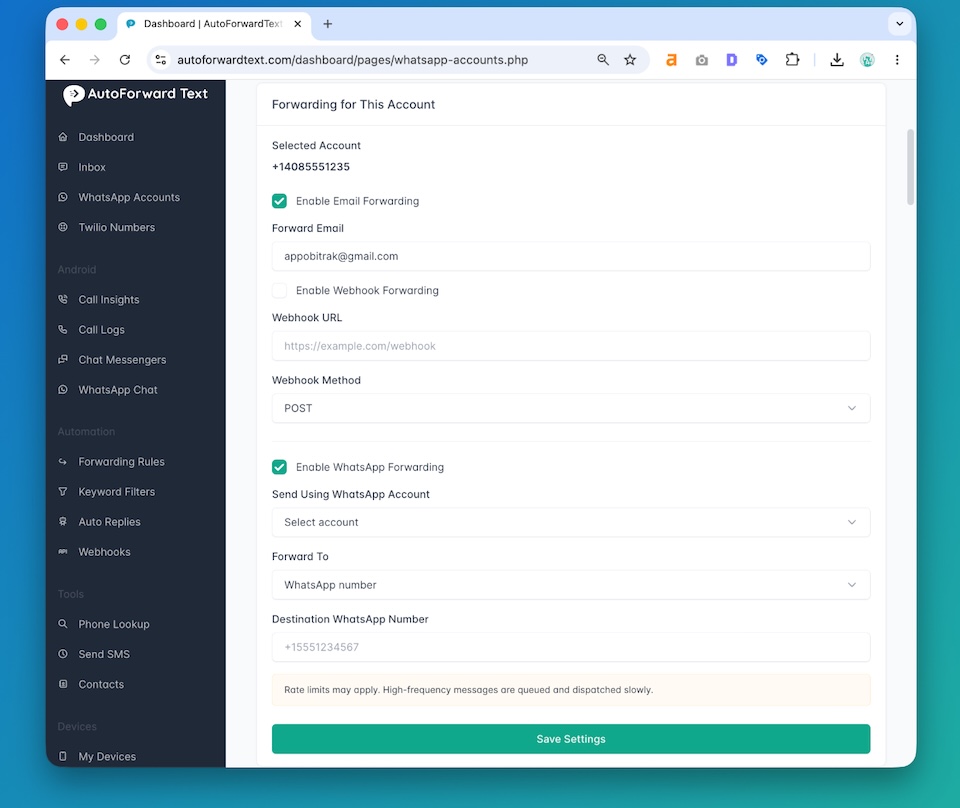
Step 5: Test Your Setup
Send a WhatsApp message to your connected account.
If setup is successful:
• Message appears in Message Logs
• Forwarding rules execute automatically
• Dashboard activity updates
Understanding Message Logs
The Message Logs section allows you to review activity.
Available information:
• Sender information
• Message content
• Message type
• Time received
• Forward status
• Reply status
Logs help troubleshoot forwarding issues and verify activity.
Still need help? Contact support.