Using Multiple iPhones with AutoForwardText iOS Shortcuts
AutoForwardText supports forwarding messages from multiple iPhones under the same account using iOS Shortcuts.
Each iPhone should be assigned its own device number so AutoForwardText can identify it as a separate device.
Why a Device Number Is Needed
If multiple iPhones use the same AutoForwardText account without a device number, they may appear under the same iOS Shortcuts device.
Adding a unique device-number header allows AutoForwardText to create and maintain a separate device connection for each iPhone.
For example:
-
iPhone 1 →
device-number: 1 -
iPhone 2 →
device-number: 2 -
iPhone 3 →
device-number: 3
Each iPhone will then be treated as a separate device in your AutoForwardText account.
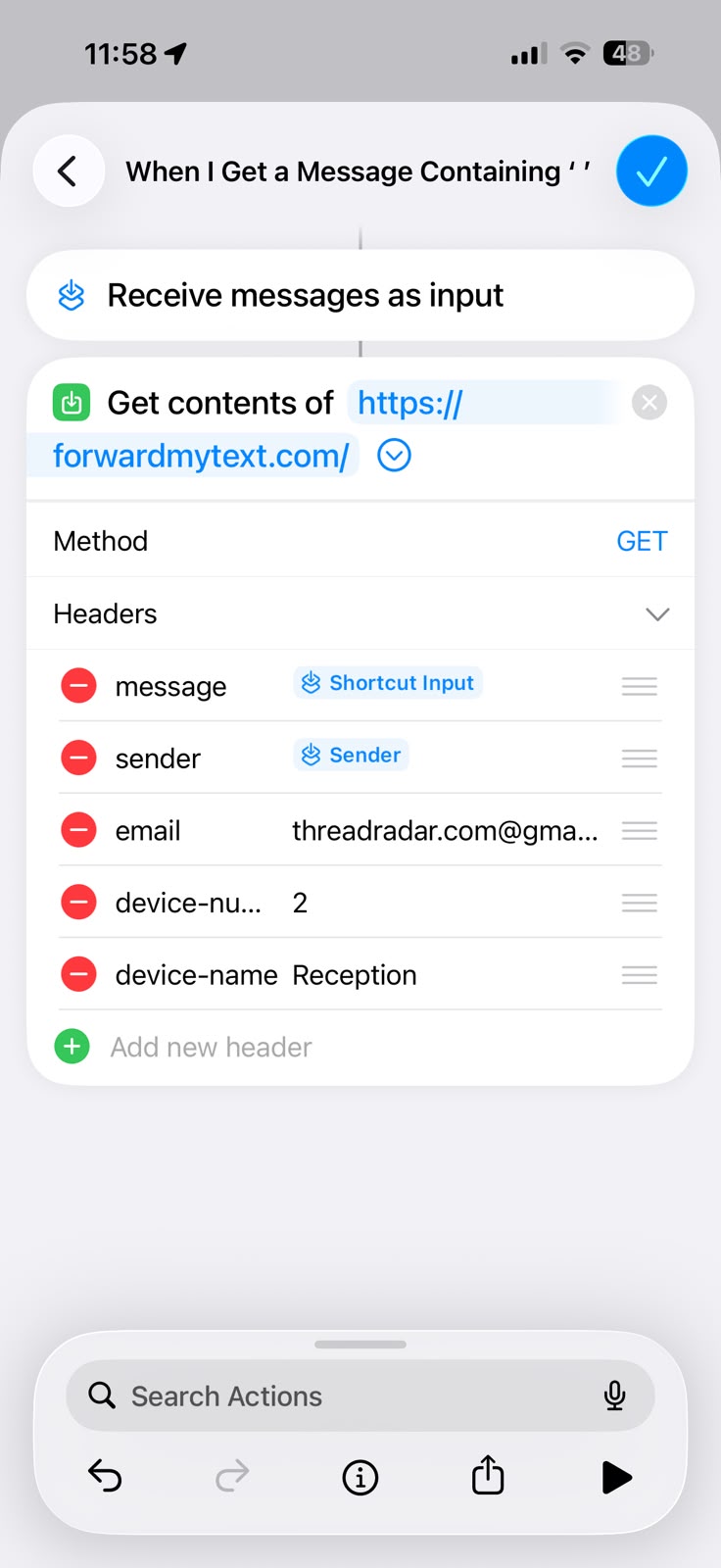
Add the Device Number to Your Shortcut
Open the AutoForwardText Shortcut on the iPhone and locate the section where the request headers are configured.
Add this header:
device-number: 1For the second iPhone, use:
device-number: 2For additional iPhones, continue using a different number for each device:
device-number: 3
device-number: 4
device-number: 5
Each iPhone connected to the same AutoForwardText account must use a unique device number.
Optional: Give Each iPhone a Device Name
You can also add an optional device-name header to make your devices easier to identify in the AutoForwardText dashboard.
For example:
device-number: 1
device-name: Ben's iPhone
On another iPhone:
device-number: 2
device-name: Reception iPhone
The device name is only used for identification in your account. The device-number is what AutoForwardText uses to distinguish one iPhone from another.
Example Header Setup
A Shortcut configured for the first iPhone might include:
email: you@example.com
device-number: 1
device-name: Main iPhone
A second iPhone using the same AutoForwardText account could use:
email: you@example.com
device-number: 2
device-name: Office iPhone
The same AutoForwardText account email can be used on all devices.
Important
Do not use the same device-number on two different iPhones.
For example, this is correct:
iPhone A → device-number: 1
iPhone B → device-number: 2
iPhone C → device-number: 3
This is not recommended:
iPhone A → device-number: 1
iPhone B → device-number: 1
If two iPhones use the same device number, AutoForwardText may treat them as the same device.
Existing iPhone Shortcuts
Existing iOS Shortcuts that do not include a device-number continue to operate as the first device.
When adding a second or additional iPhone, we recommend adding an explicit device number to every iPhone so the configuration is clear.
For example:
Original iPhone → device-number: 1
Second iPhone → device-number: 2
Third iPhone → device-number: 3
Do Multiple iPhones Count as Separate Devices?
Yes.
Each physical iPhone connected through iOS Shortcuts is considered a separate device connection.
For example, if you use AutoForwardText with seven iPhones, the account will have seven iPhone device connections.
This applies even if all of the iPhones use the same AutoForwardText account email.
Troubleshooting
I added another iPhone but it does not appear separately
Check that the new iPhone has a unique device-number.
For example, if your first iPhone uses:
device-number: 1the second iPhone should use:
device-number: 2Two iPhones appear to be sharing the same device
Check the Shortcut configuration on both phones and make sure they are not using the same device number.
Can I change the device name?
Yes. The device-name value can be changed without changing the device identity, as long as the device-number remains the same.
For example:
device-number: 2
device-name: Office iPhone
can later be changed to:
device-number: 2
device-name: John's iPhone
The device remains Device 2.
Can I change the device number?
You should generally keep the same device number once an iPhone has been configured.
Changing:
device-number: 2to:
device-number: 5may cause AutoForwardText to treat the phone as a different device.
Recommended Setup
For the cleanest configuration, assign device numbers in order:
1
2
3
4
5
and optionally give each device a descriptive name such as:
Main iPhone
Office iPhone
Reception iPhone
Sales iPhone
Support iPhone
This makes it much easier to identify and manage multiple iPhones from the AutoForwardText dashboard.